

Appearance
Slack

Slack failure alerts via Incoming Webhook
Post failure alerts into a Slack channel or DM through a custom Slack app's Incoming Webhook. One webhook = one workspace + one channel.
Prerequisites
- A Slack account.
- A Slack workspace you can install apps into (steps 3–12 cover creating one if you don't have one).
- WordPress admin access.
Step-by-step
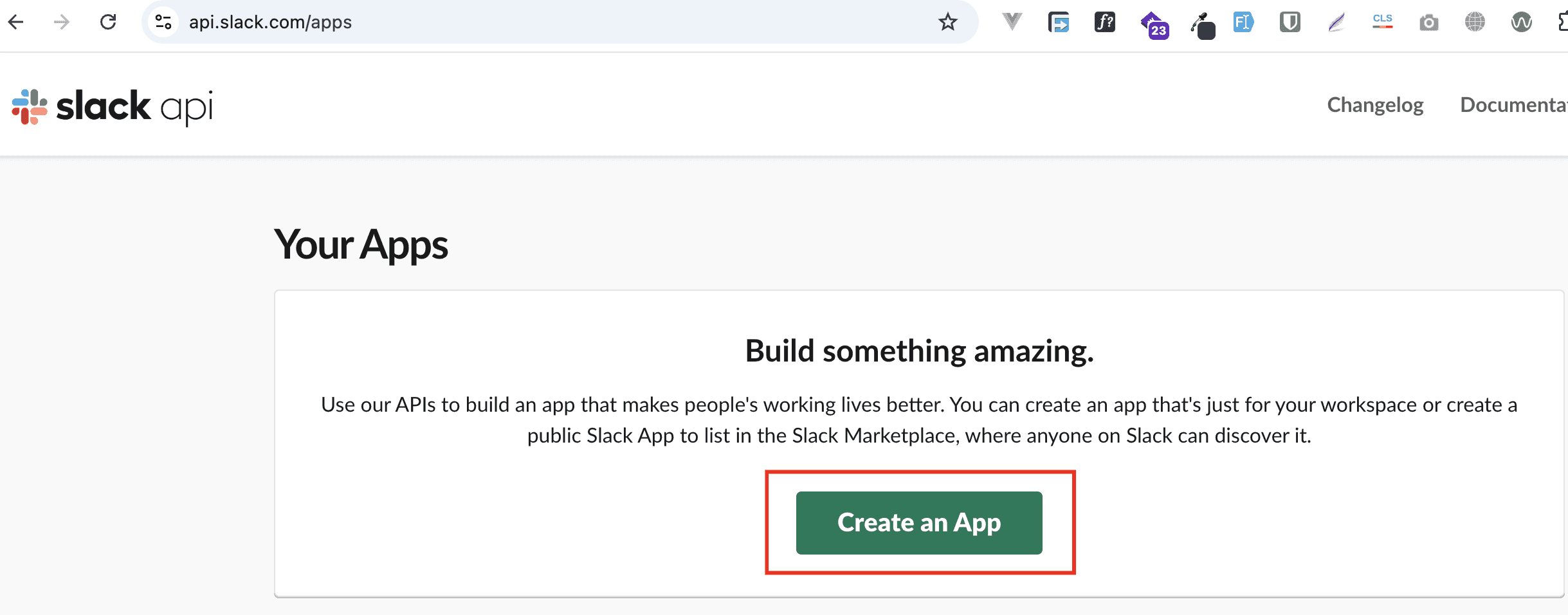
Pick "From scratch"
The Create an app modal asks how to configure scopes and settings. Click From scratch.
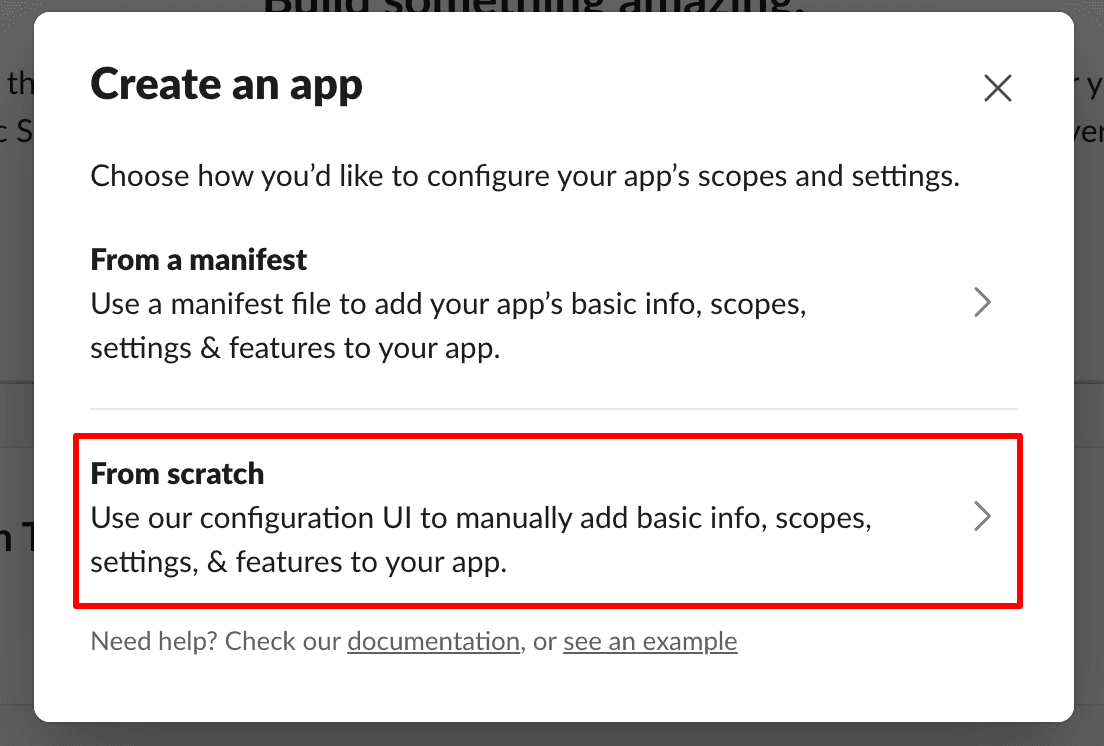
Already have a Slack workspace?
Skip steps 3–12 (workspace creation) and jump to step 13 to name and create the app.
Create a workspace (if you don't have one)
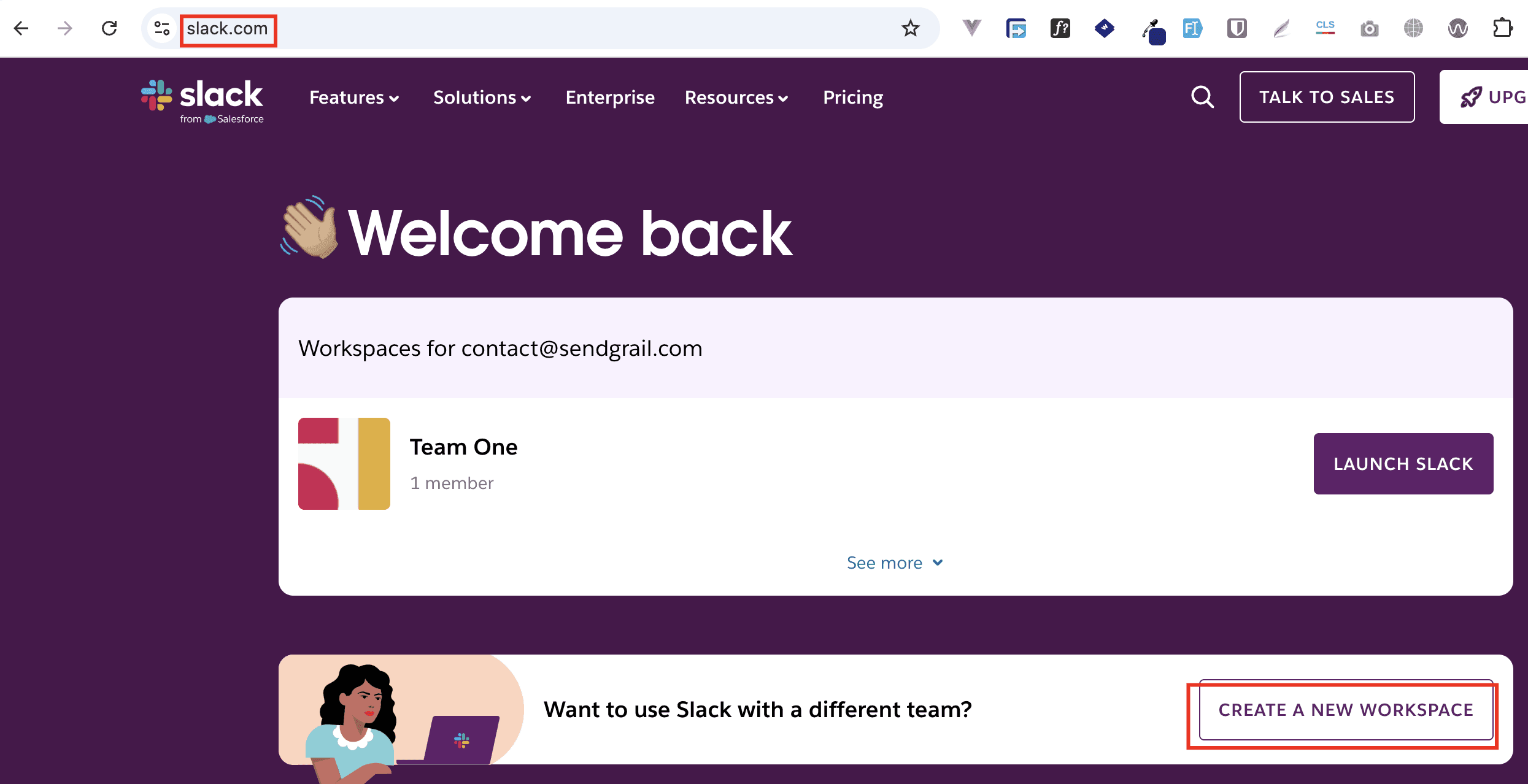
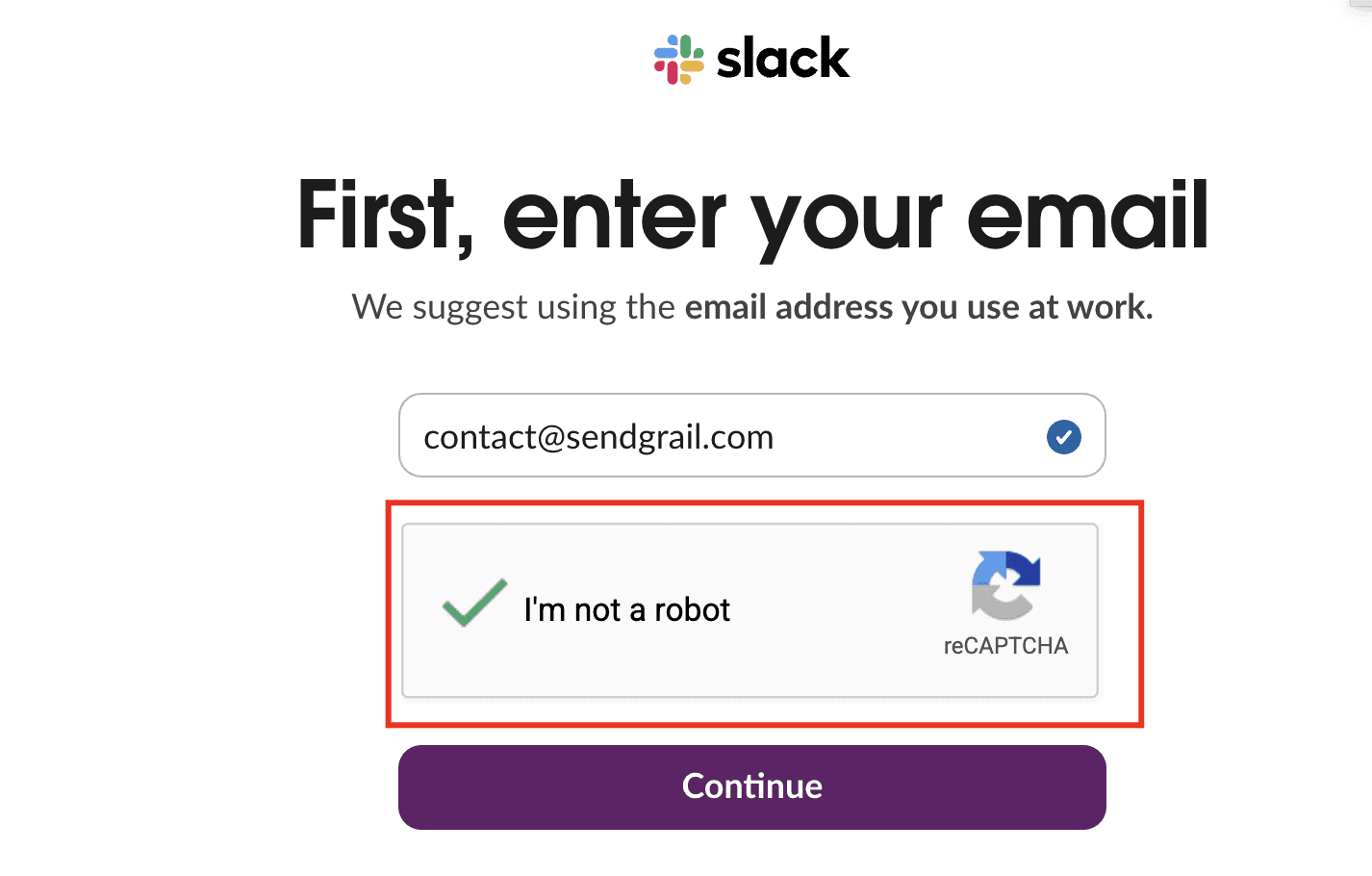
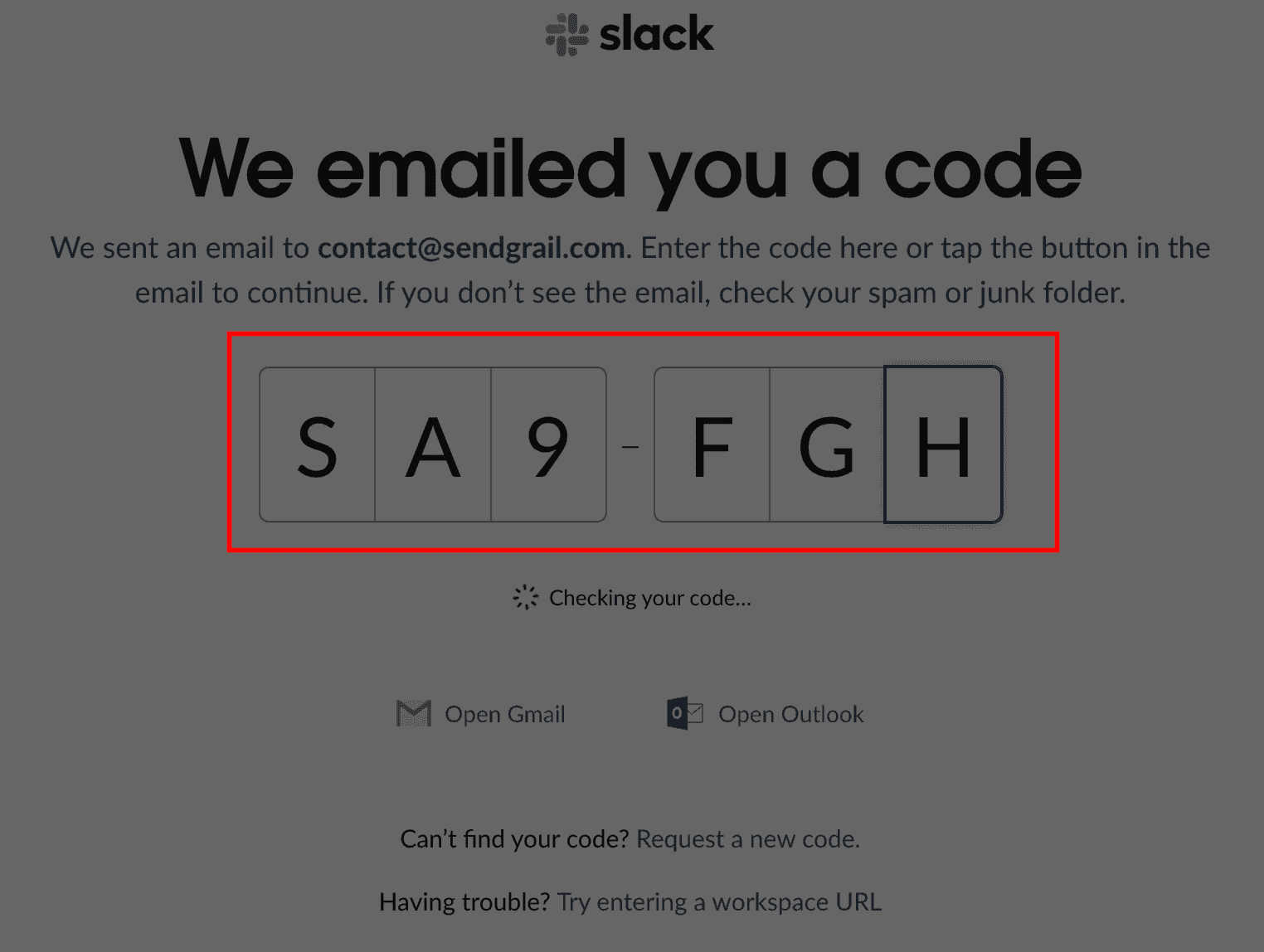
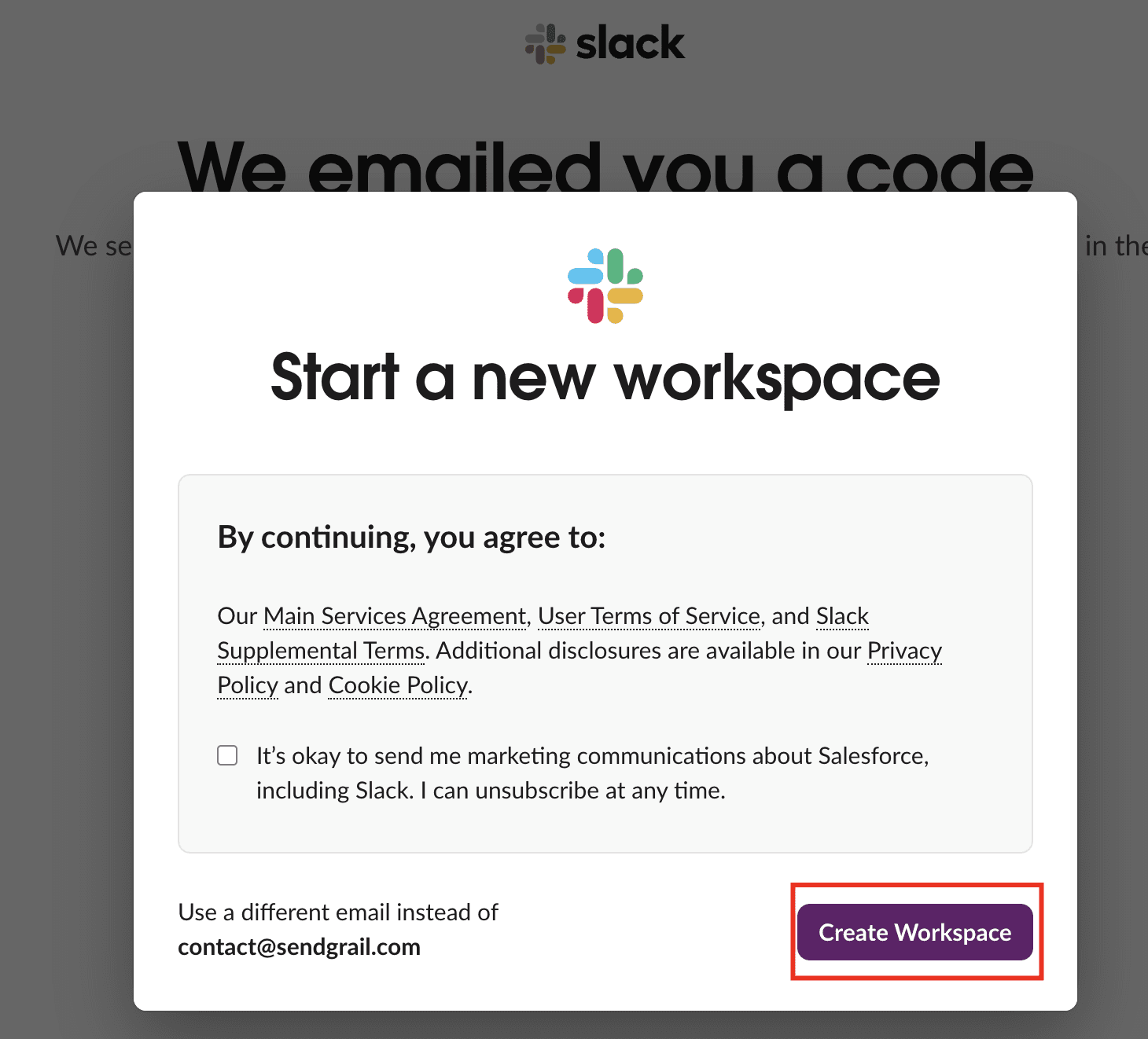
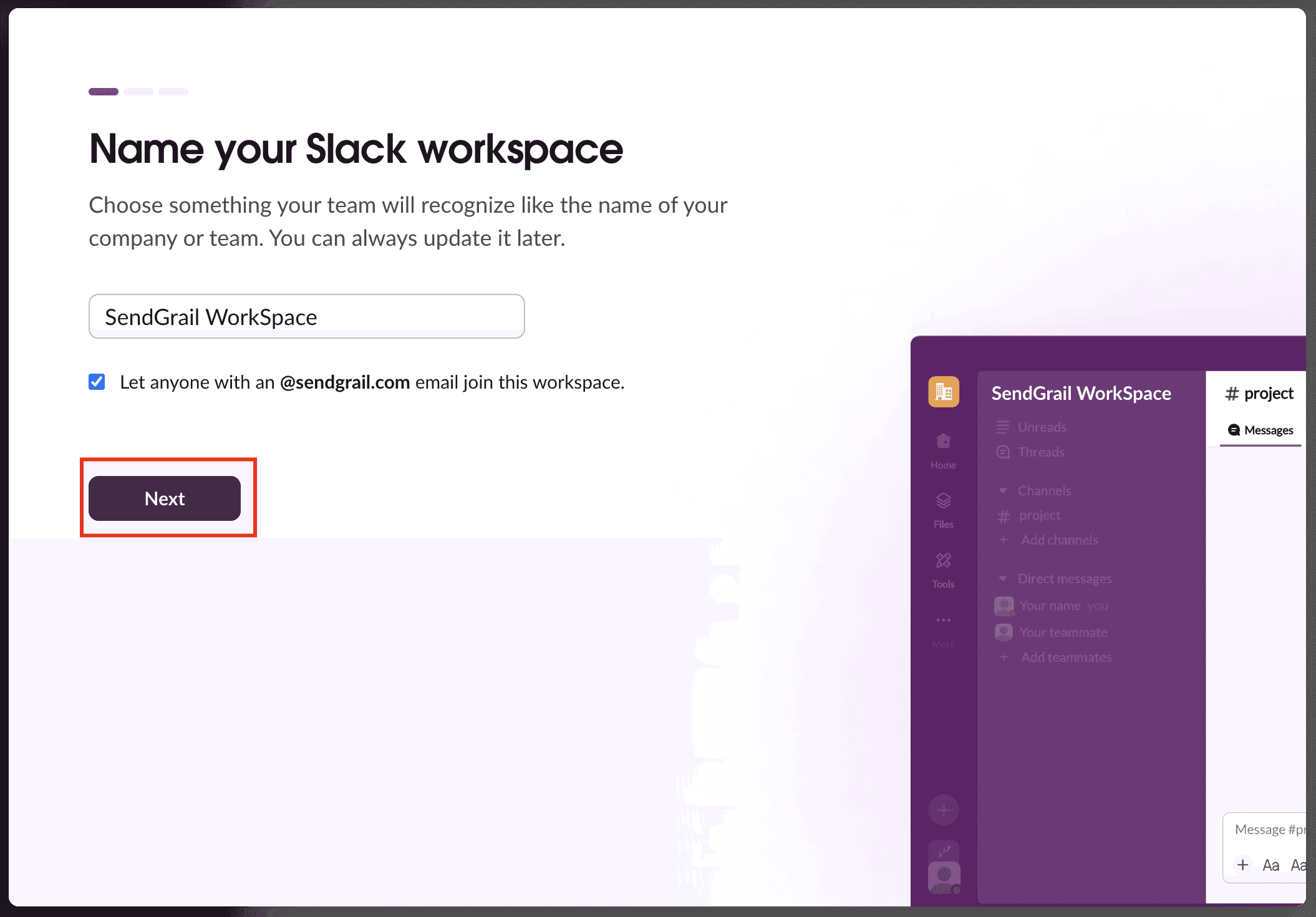
If you don't have a Slack workspace yet, click Create a New Workspace on the Slack home page.
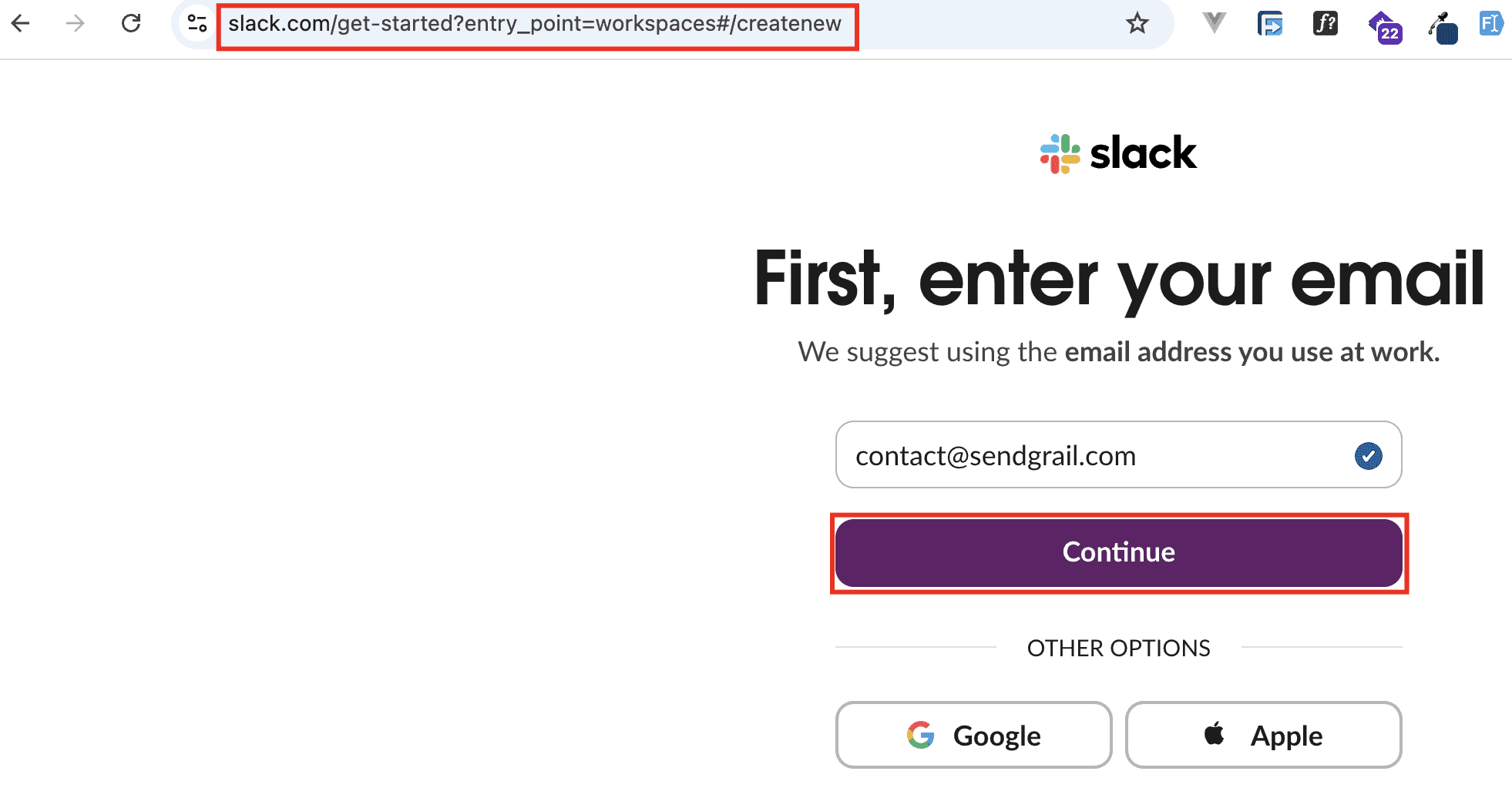
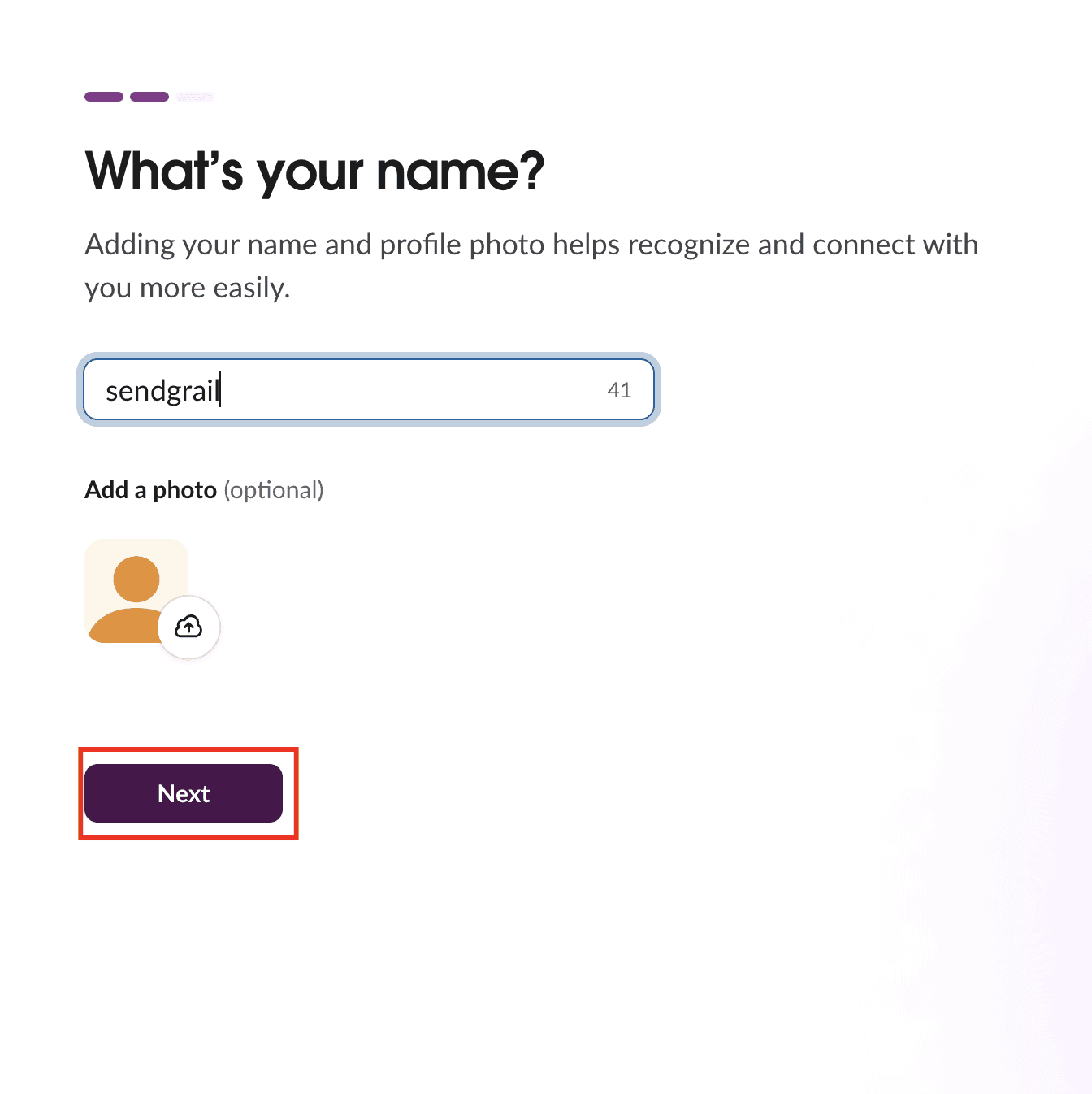
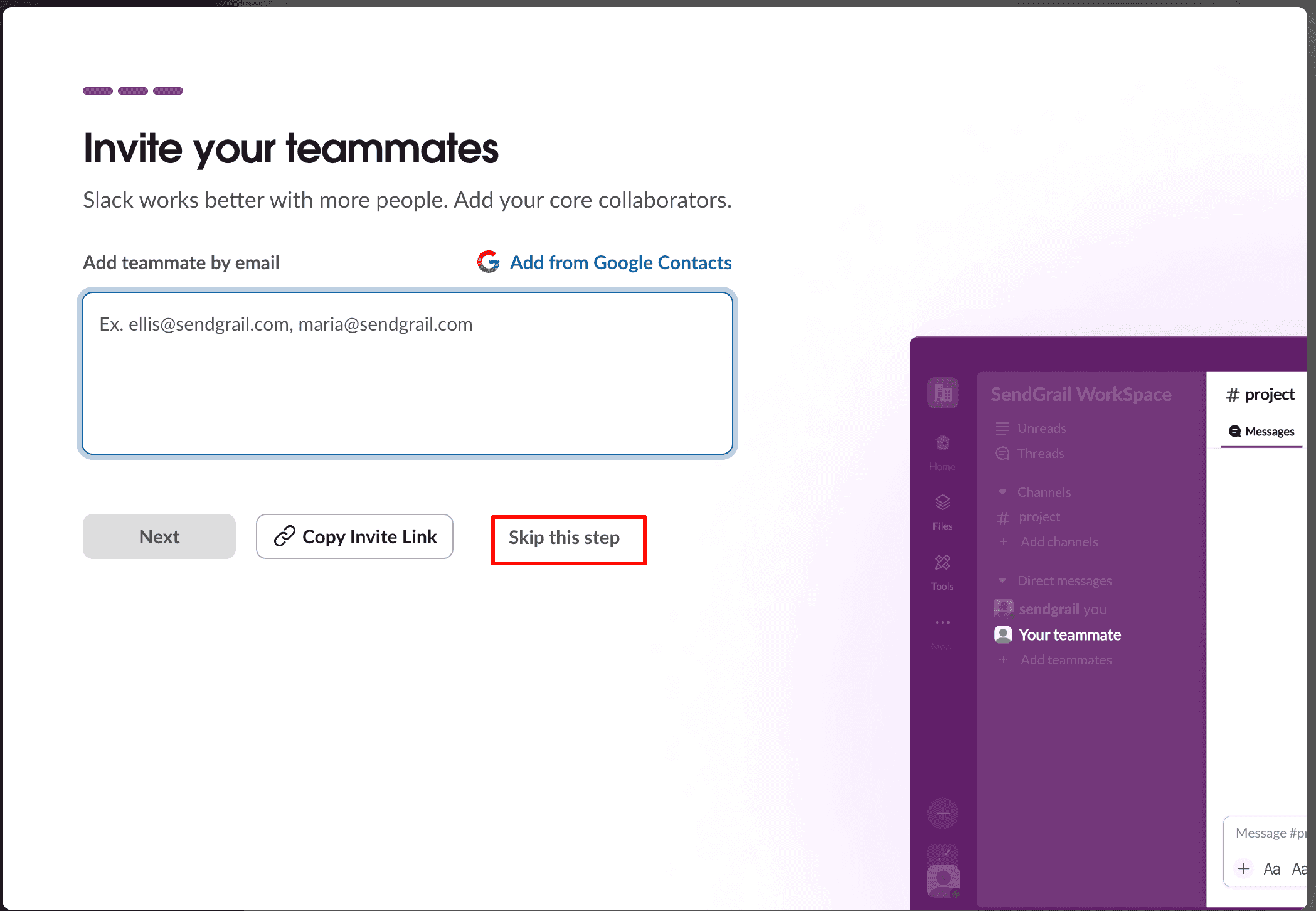
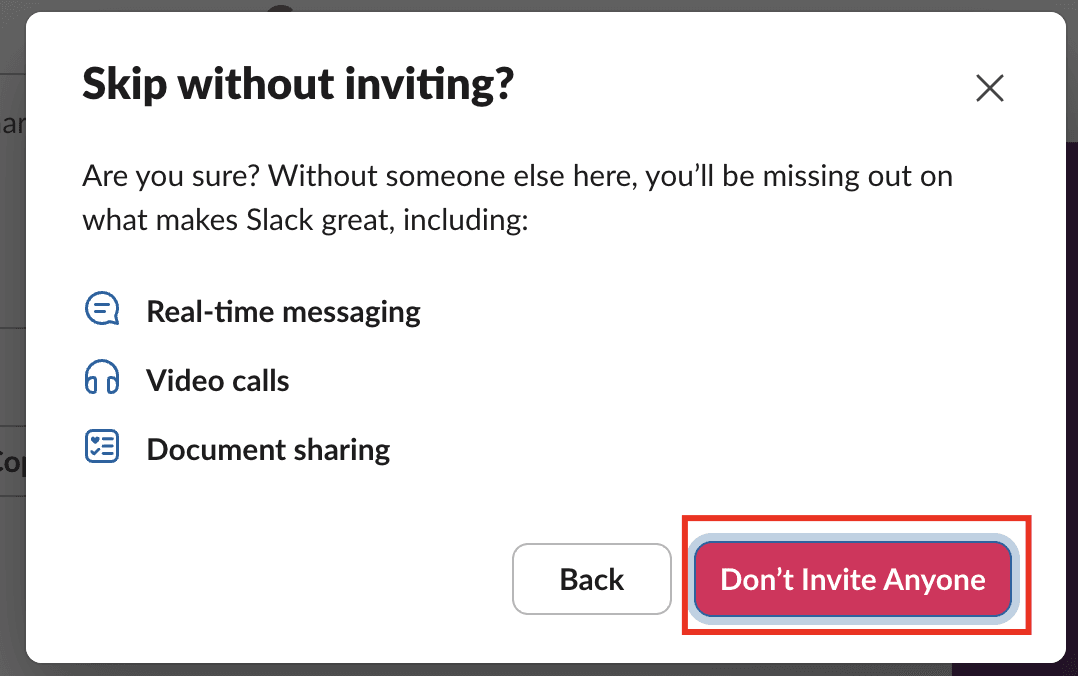
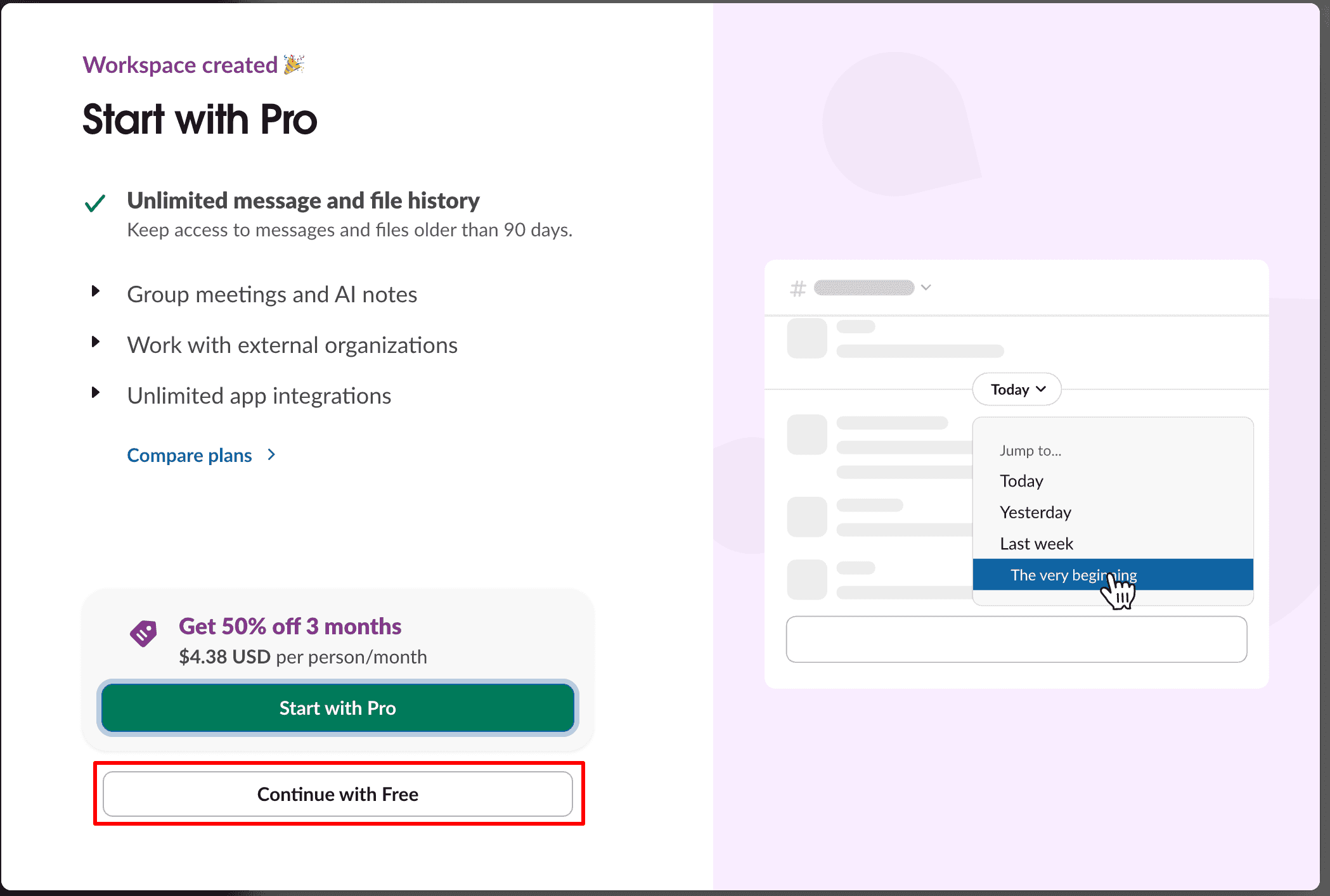
Continue with Free
The free plan covers everything you need for webhooks. Click Continue with Free.
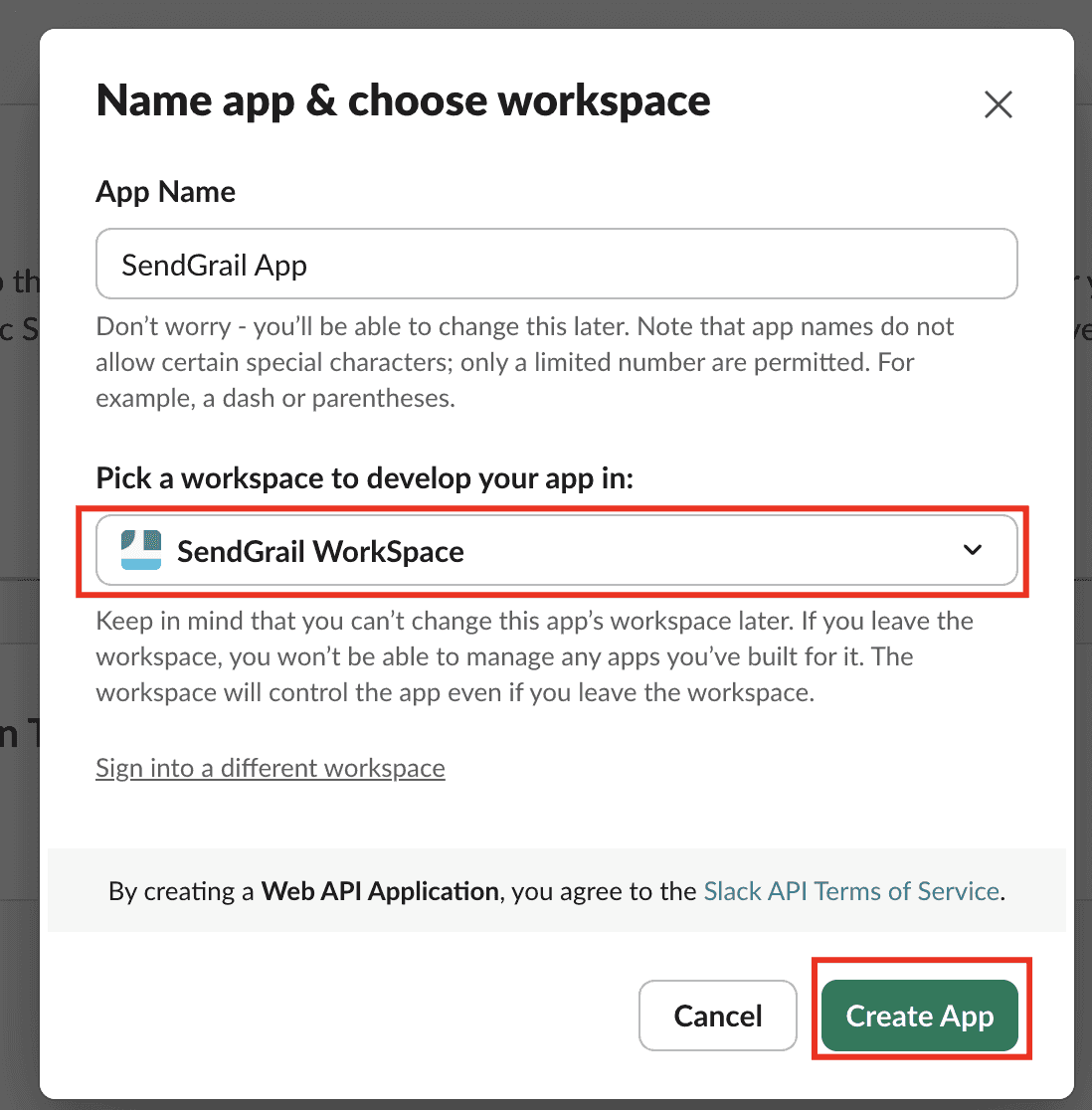
Name the app and pick the workspace
Back at the Create an app modal: enter SendGrail App as the App Name, pick your workspace from the dropdown, and click Create App.
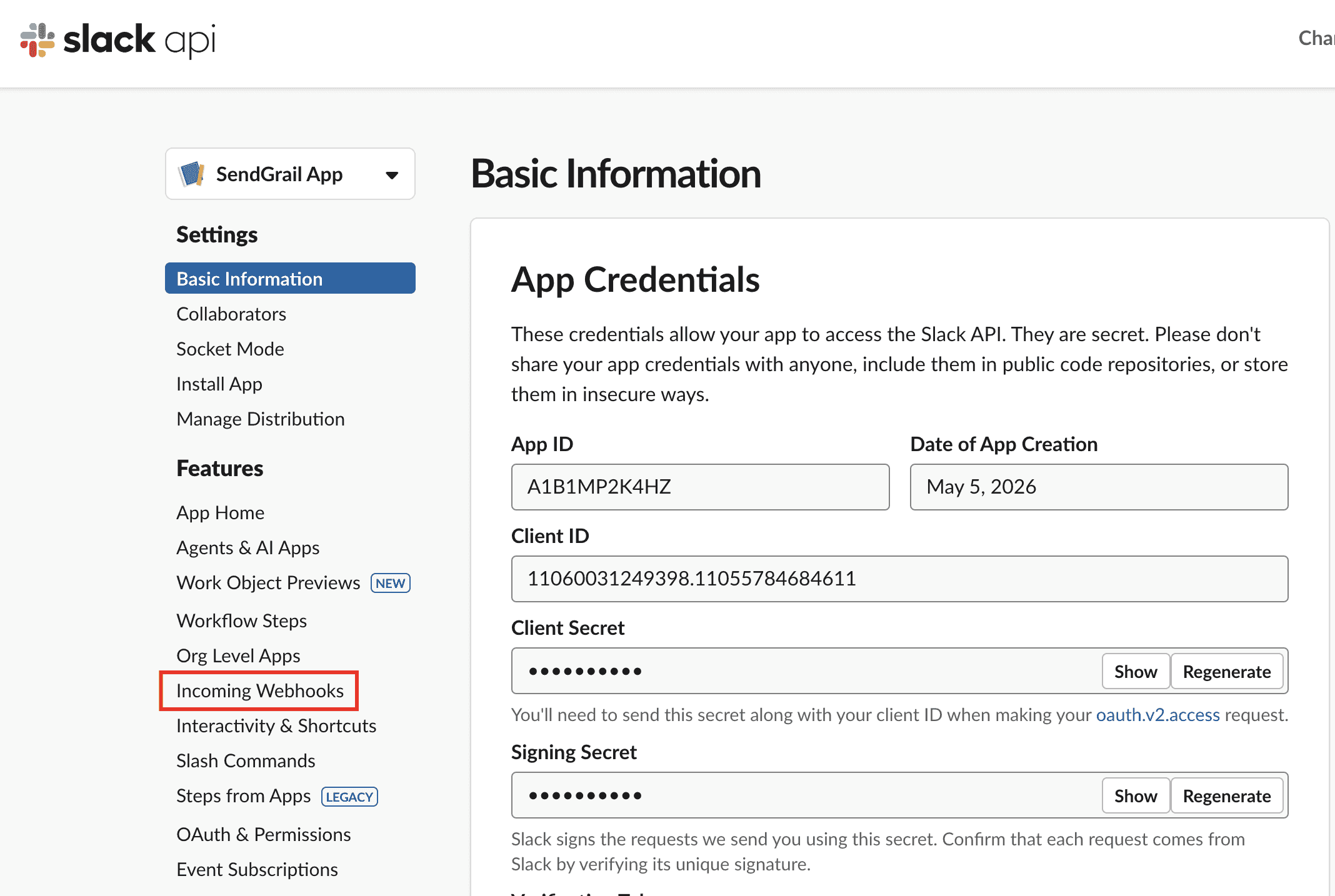
Open Incoming Webhooks
You're now on the app's Basic Information page. In the left sidebar under Features, click Incoming Webhooks.
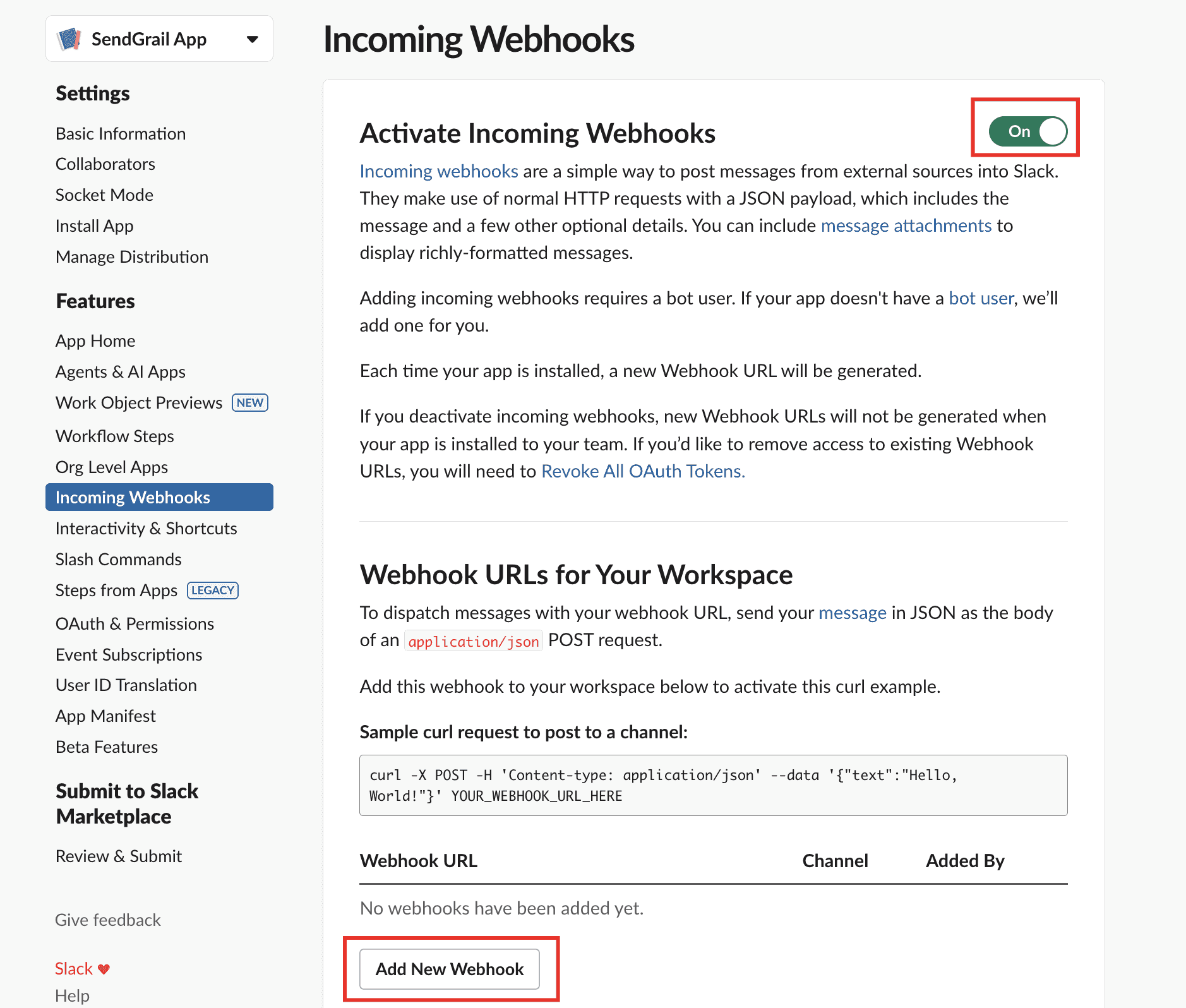
Activate webhooks and add one
Toggle Activate Incoming Webhooks to On. Scroll to the bottom and click Add New Webhook to Workspace.
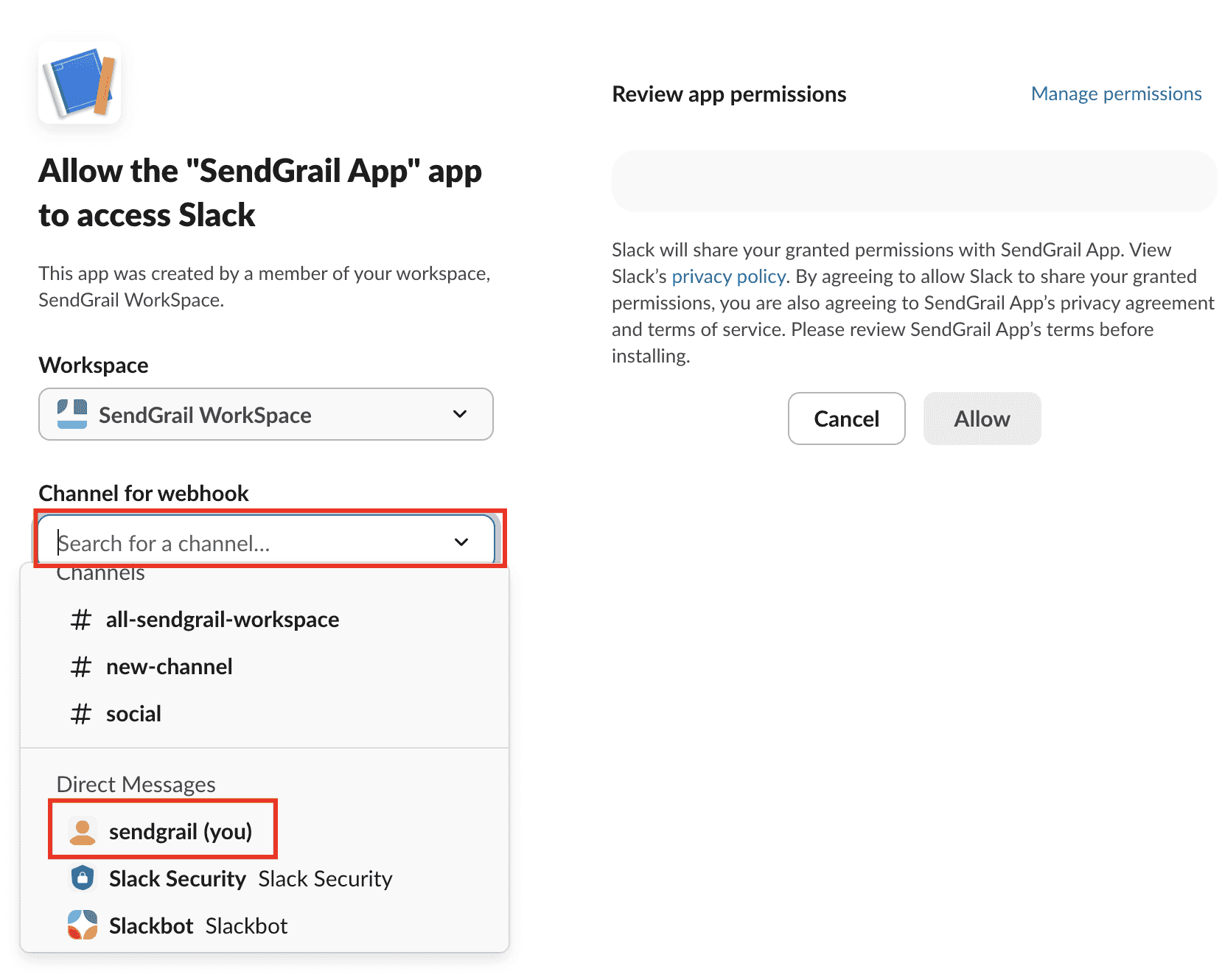
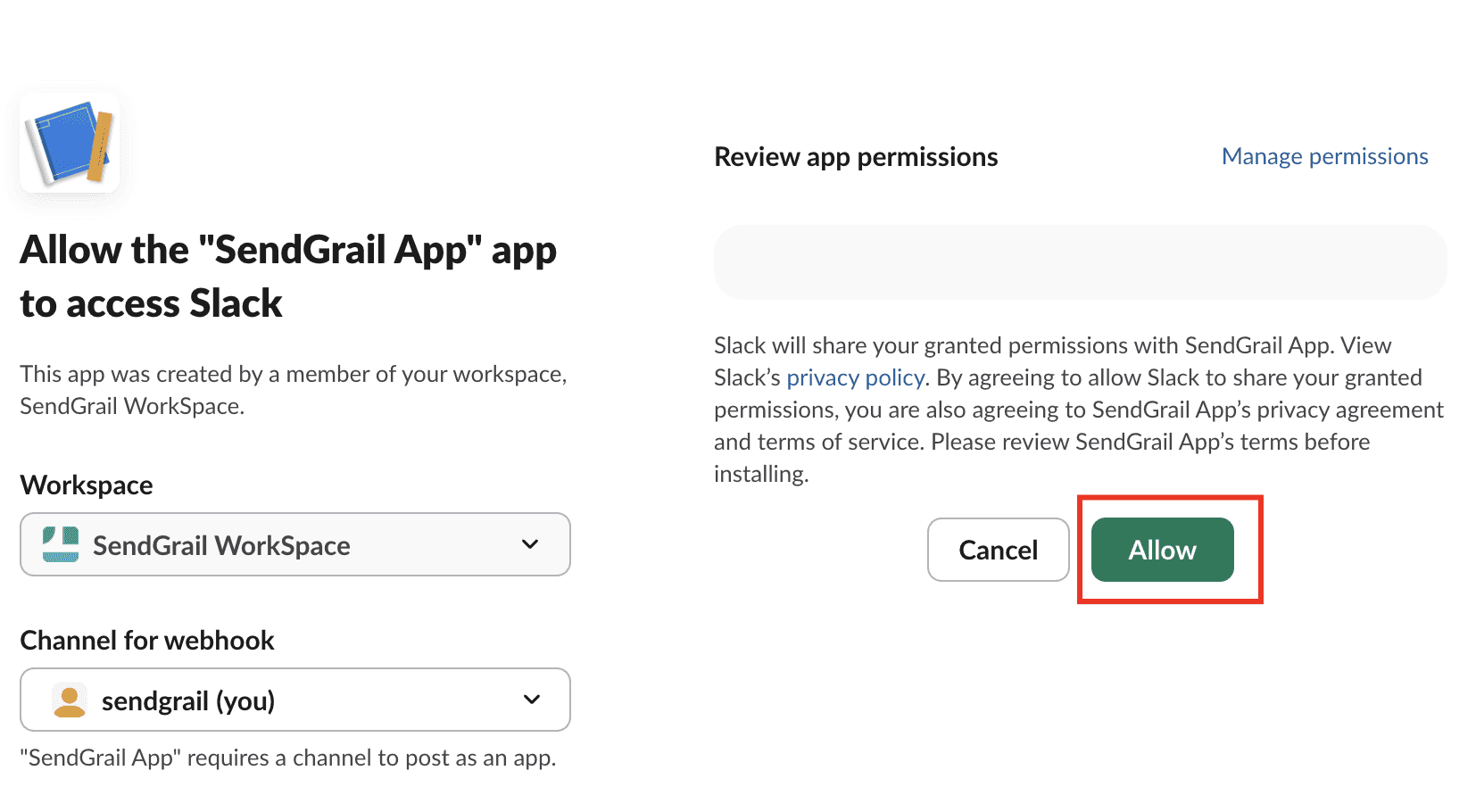
Pick the channel
Slack asks where the app should post. Use the Channel for webhook dropdown. Pick a channel (or DM yourself by selecting your own name under Direct Messages).
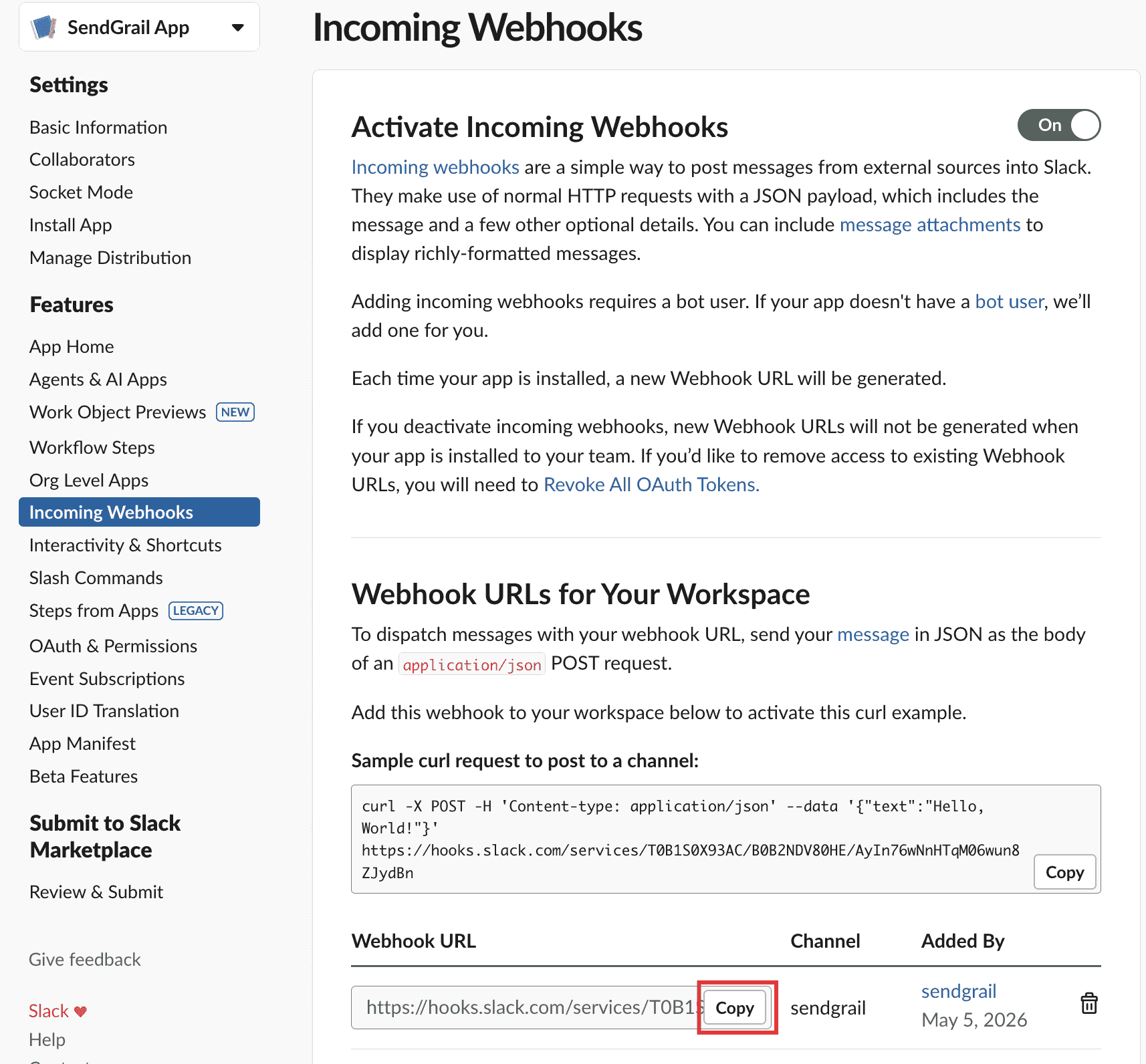
Copy the webhook URL
Slack lists your new webhook (URL starts with https://hooks.slack.com/services/). Click Copy next to it.
Paste it into SendGrail
WordPress admin → SendGrail → Settings → Notifications → Slack. Toggle Enable Slack alerts on, paste the URL into Slack Webhook URL, and click Save.
Click Send Test — a sample alert should appear in the Slack channel within a second.
Troubleshooting
invalid_token or 403
The Slack app was uninstalled from the workspace, or the webhook was revoked. Re-create the webhook in api.slack.com/apps → your app → Incoming Webhooks → Add New Webhook to Workspace.
channel_not_found
The channel was archived or deleted. Re-add a webhook to a different channel and update SendGrail with the new URL.
no_service
The webhook URL is malformed. The valid form is https://hooks.slack.com/services/T.../B.../.... Re-copy from Slack — extra trailing slashes or whitespace will fail validation.
Alert post but with no formatting
The webhook posts JSON; the channel may be configured to strip rich content. Check the channel's preview/unfurl settings, or reauthorize the webhook on a channel that allows app messages.
What's next
- Discord — same idea on Discord.
- Telegram — bot-based alerts on Telegram.
- Failure Alerts overview — how email + chat alerts work together.