

Appearance
Telegram

Telegram failure alerts via bot
Send failure alerts as Telegram messages from a custom bot. SendGrail's "Connect chat" feature auto-detects the chat ID after you tap Start in the bot — no manual API fishing.
Prerequisites
- A Telegram account.
- WordPress admin access.
Step-by-step
Find @BotFather
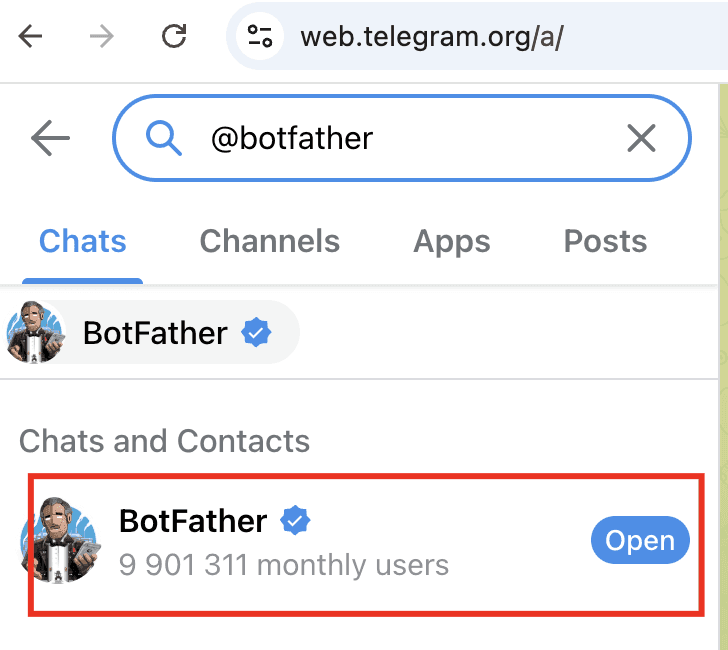
Open Telegram (web or desktop / mobile app). In the search bar, type @botfather and click the verified BotFather result.
Give the bot a display name
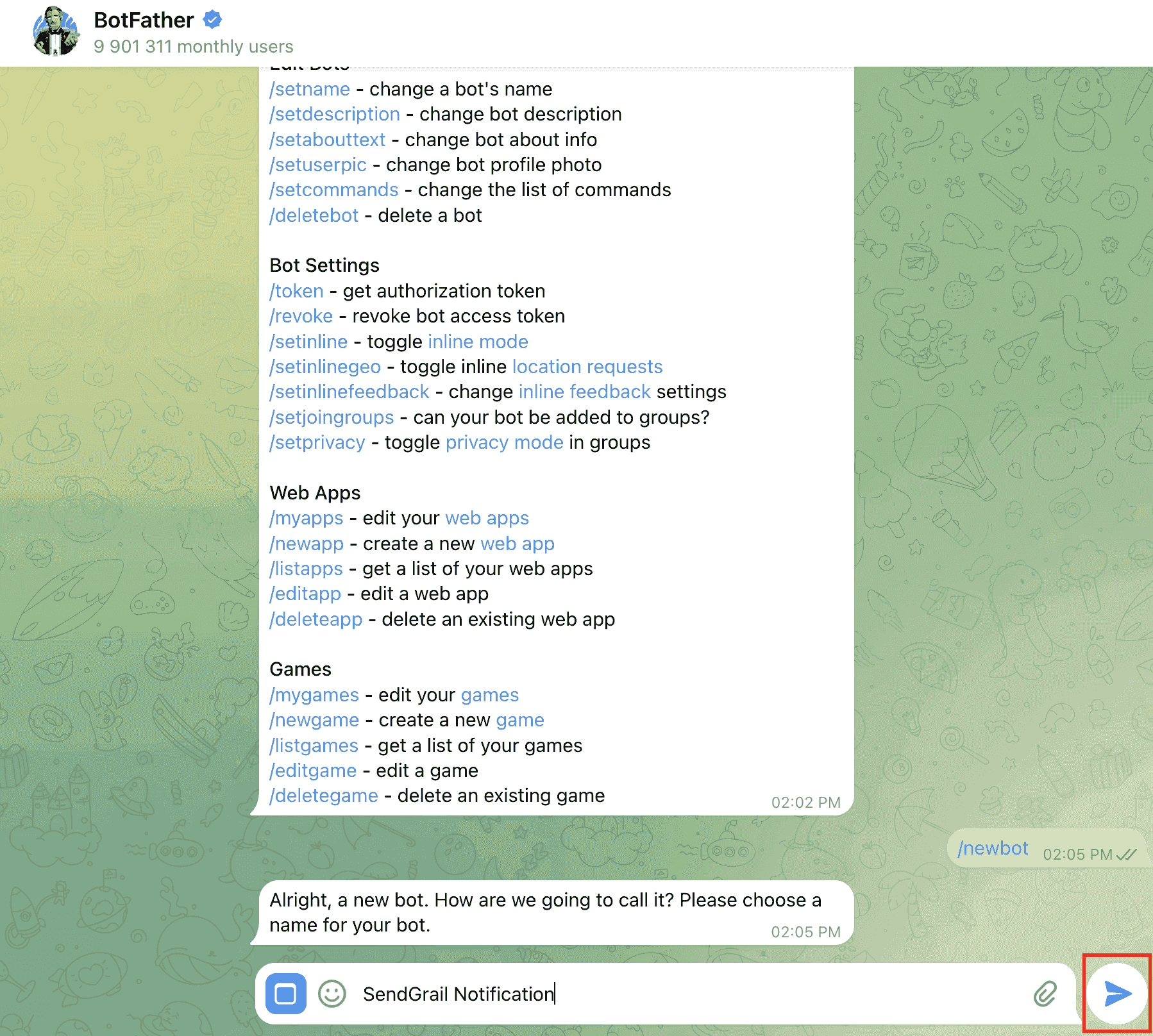
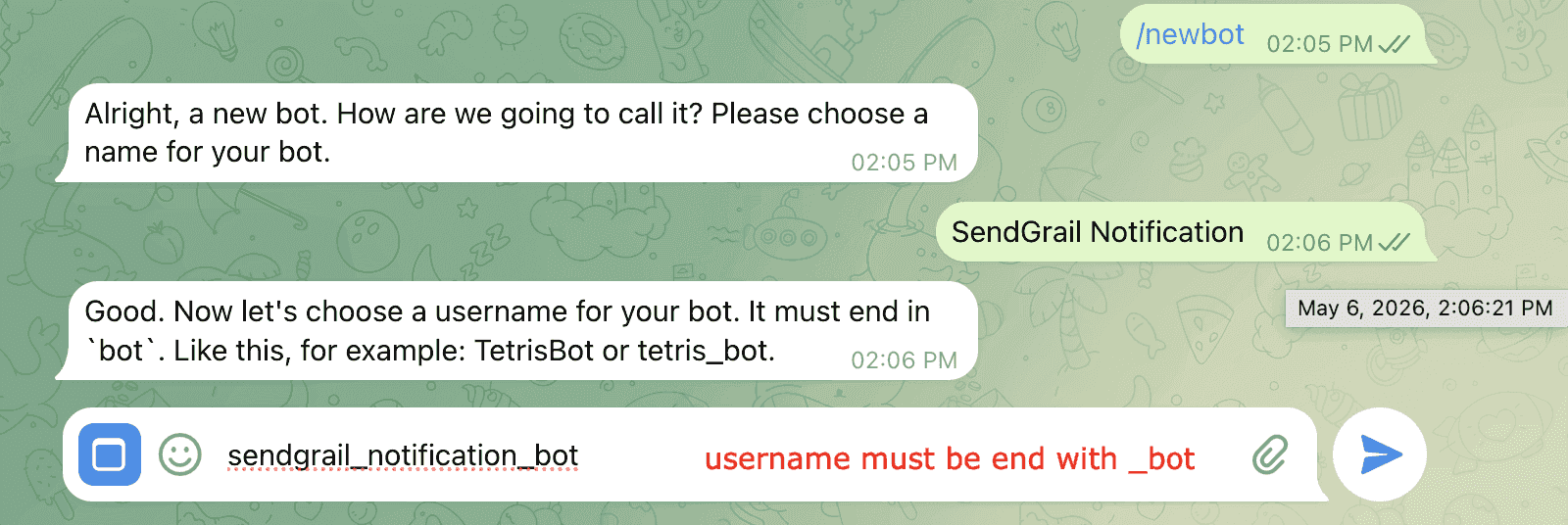
BotFather asks for a name. Send SendGrail Notification (or anything human-readable).
Choose a username (must end with _bot)
BotFather asks for a username. It must end in _bot. Send something like sendgrail_notification_bot. If it's taken, BotFather asks you to try another.
Copy the bot token
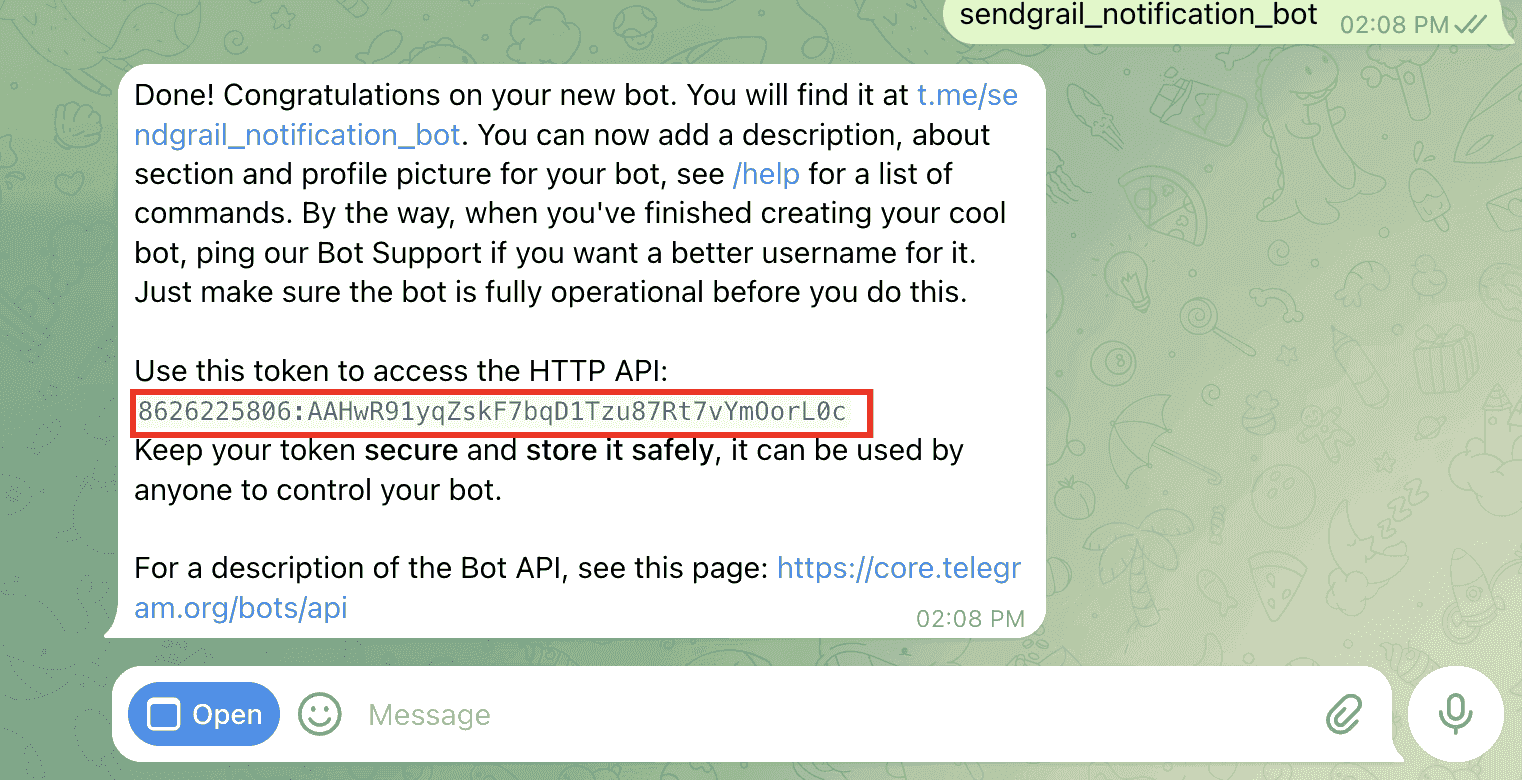
BotFather replies with a "Done! Congratulations on your new bot." message containing the HTTP API token (a long string like 8626225806:AAH...). Copy this token — keep it secret, anyone with it can send messages as your bot.
Paste the token into SendGrail and click Connect chat
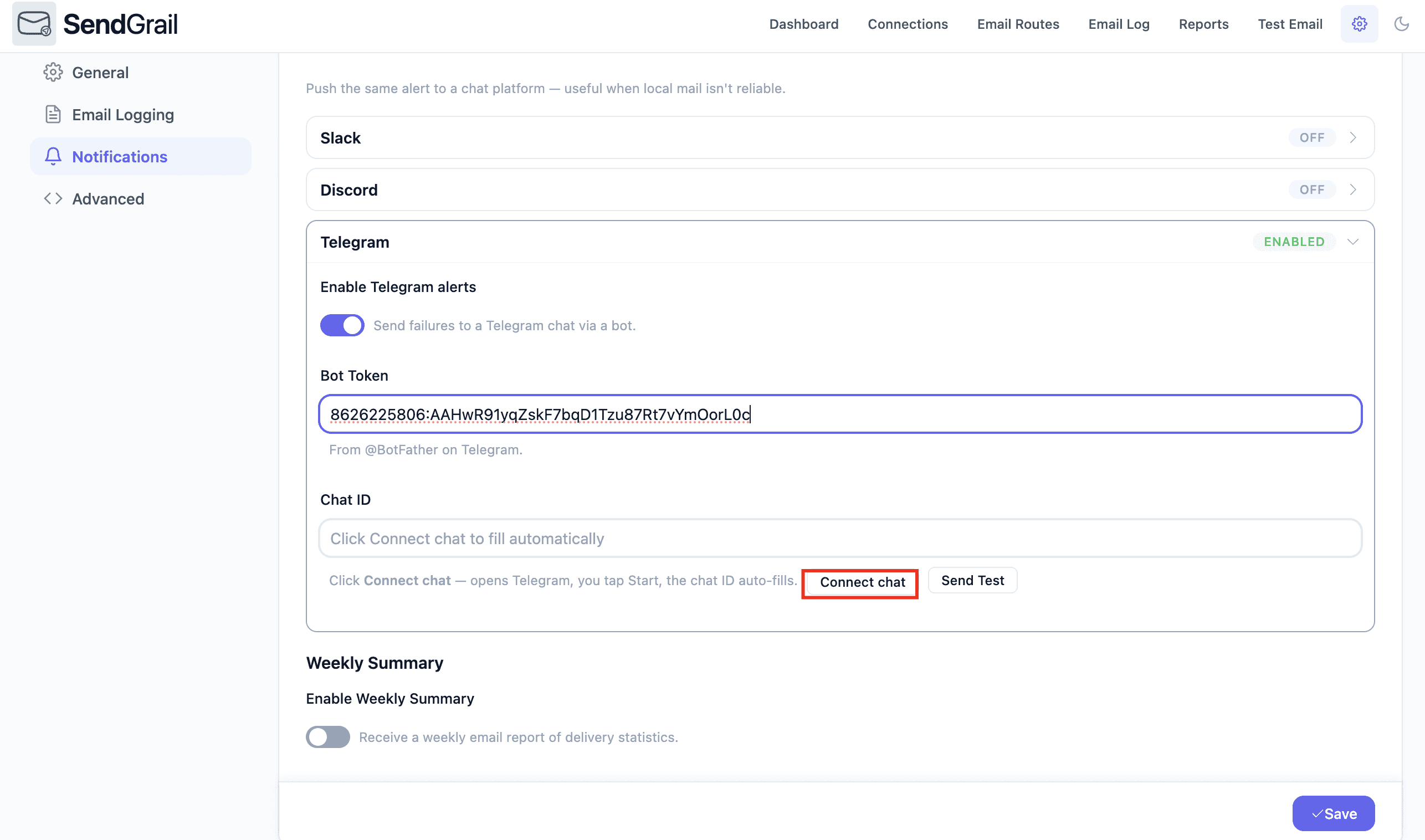
WordPress admin → SendGrail → Settings → Notifications → Telegram. Toggle Enable Telegram alerts on, paste the token into Bot Token, and click Connect chat.
What "Connect chat" does
SendGrail opens a Telegram link to your bot in a new tab and starts polling for the next chat that sends /start. When you tap Start, it captures that chat's ID and writes it back into the Chat ID field for you. The window is open for 5 minutes before SendGrail stops polling.
Watch the Waiting state
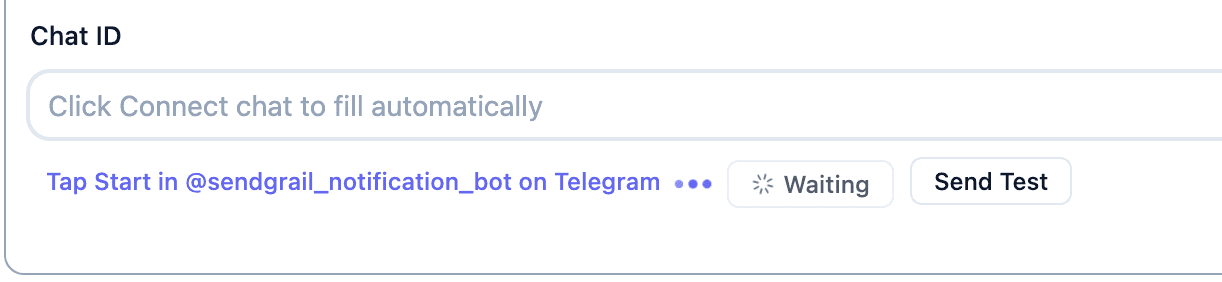
The Chat ID field shows Tap Start in @your_bot_name on Telegram with a Waiting indicator. Don't close this tab — leave it open while you trigger Start in Telegram.
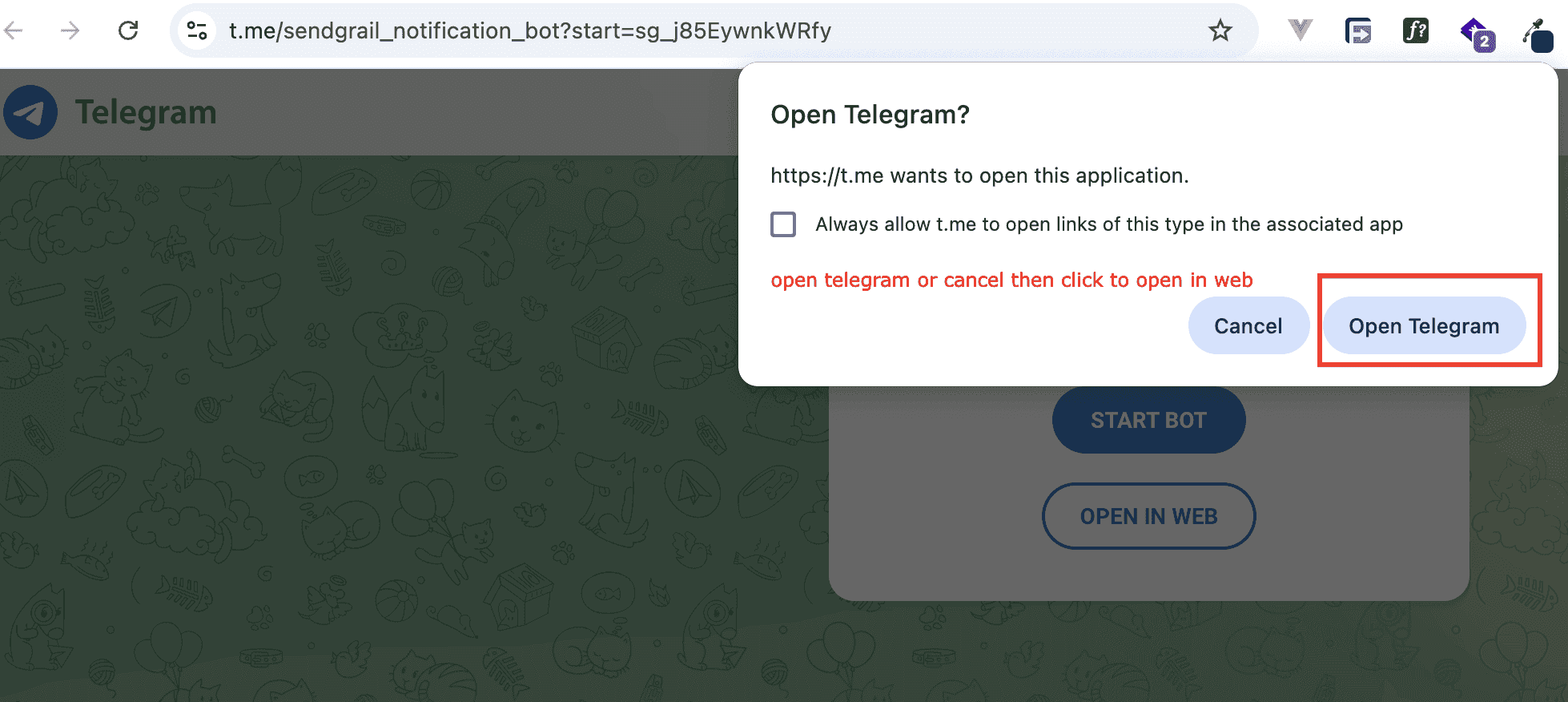
Open Telegram from the prompt
Your browser asks how to open the Telegram link. Click Open Telegram to launch the desktop / mobile app, or skip this and use Open in Web (next step).
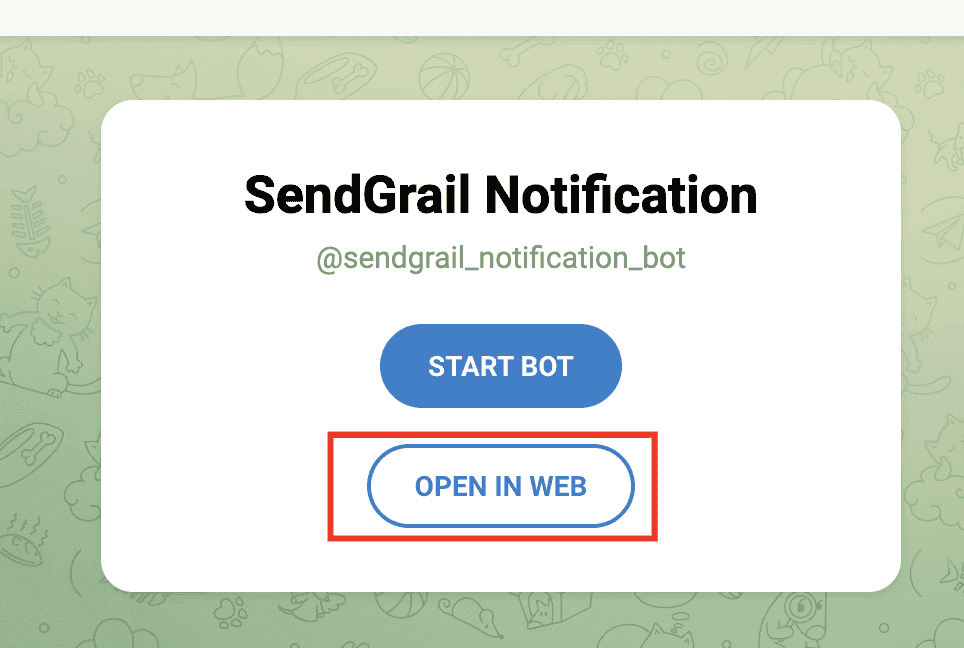
(Optional) Open in Web
If you don't have the desktop app installed, click OPEN IN WEB on the bot's profile card.
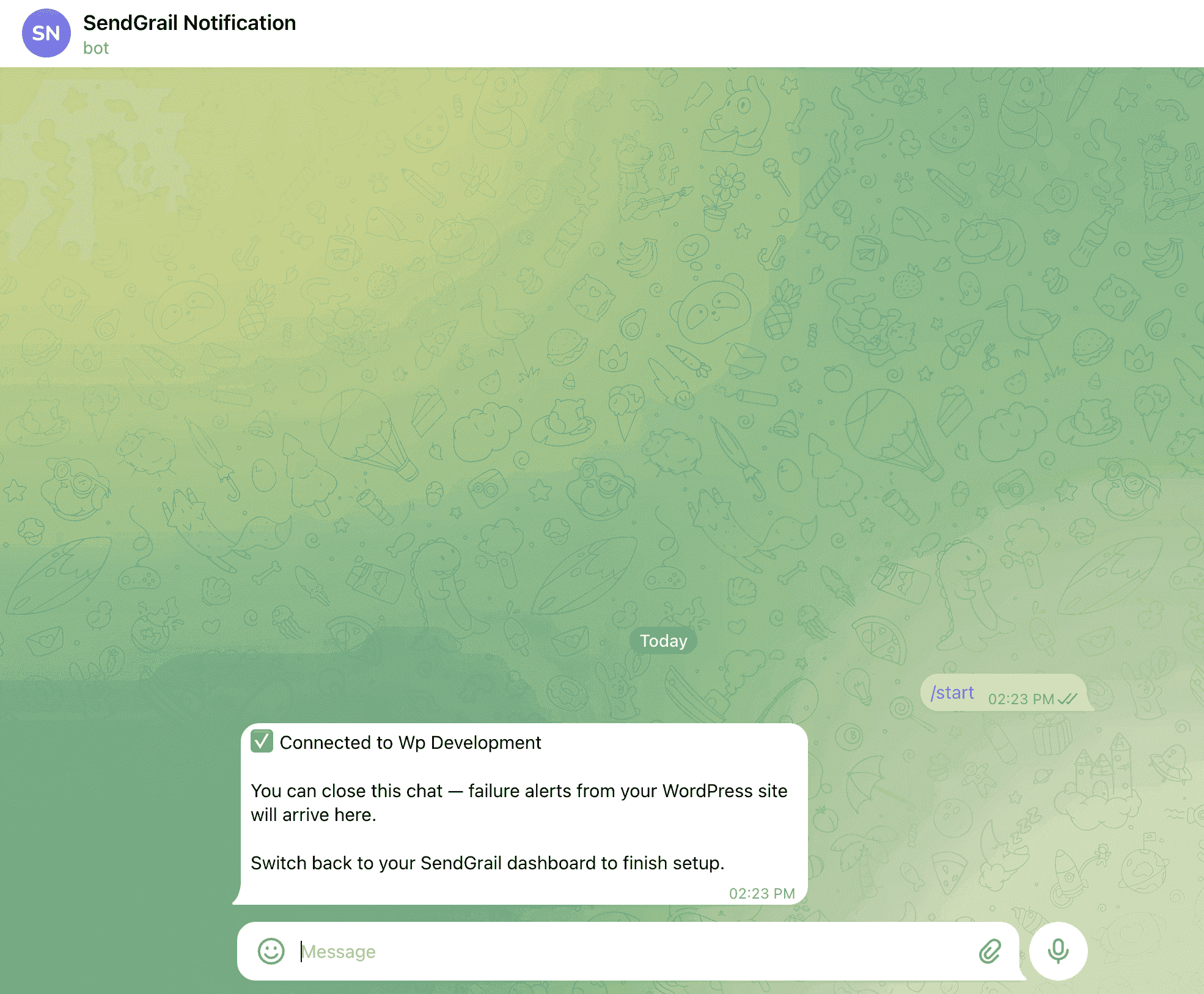
Tap Start in the bot chat
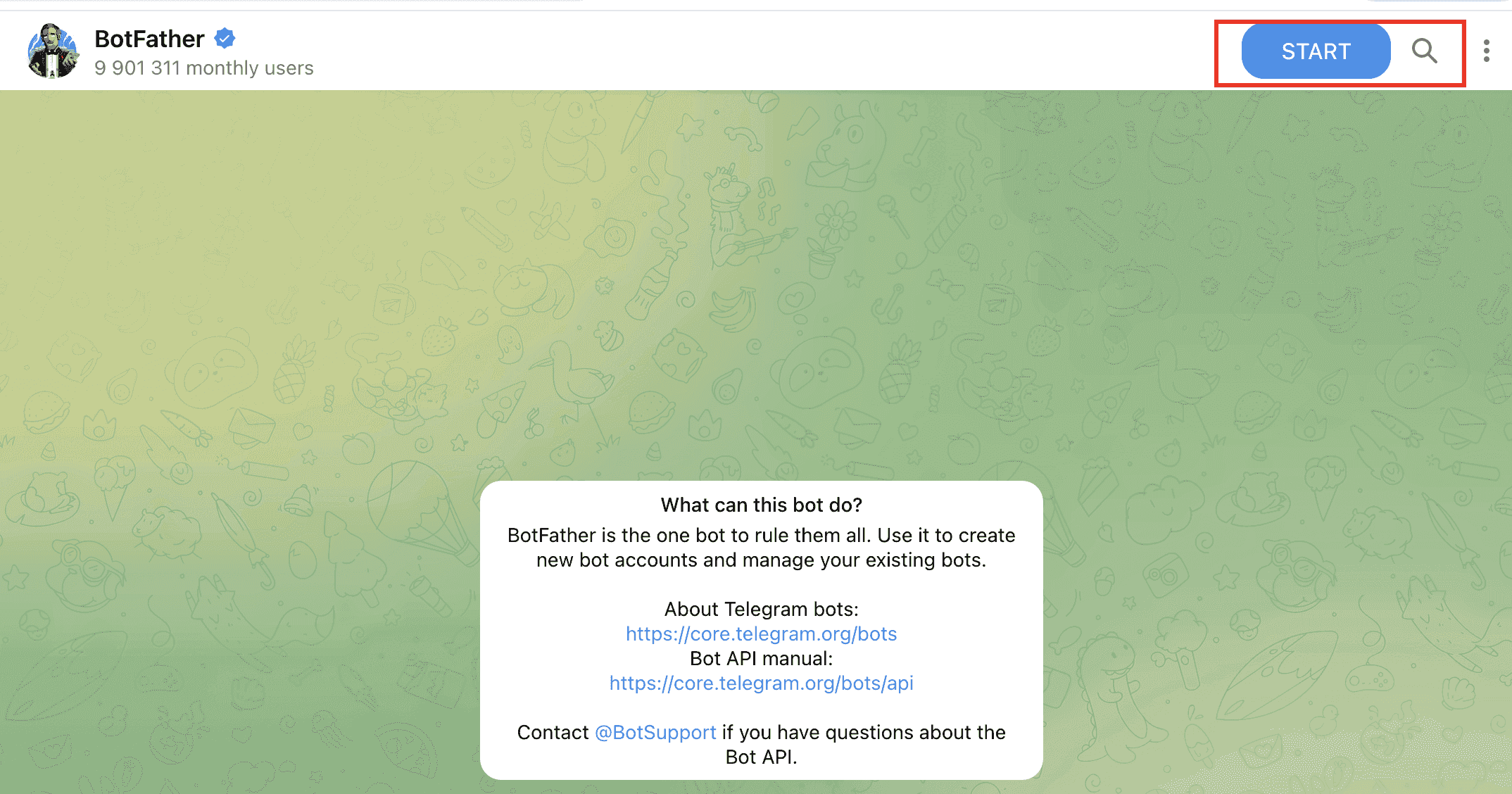
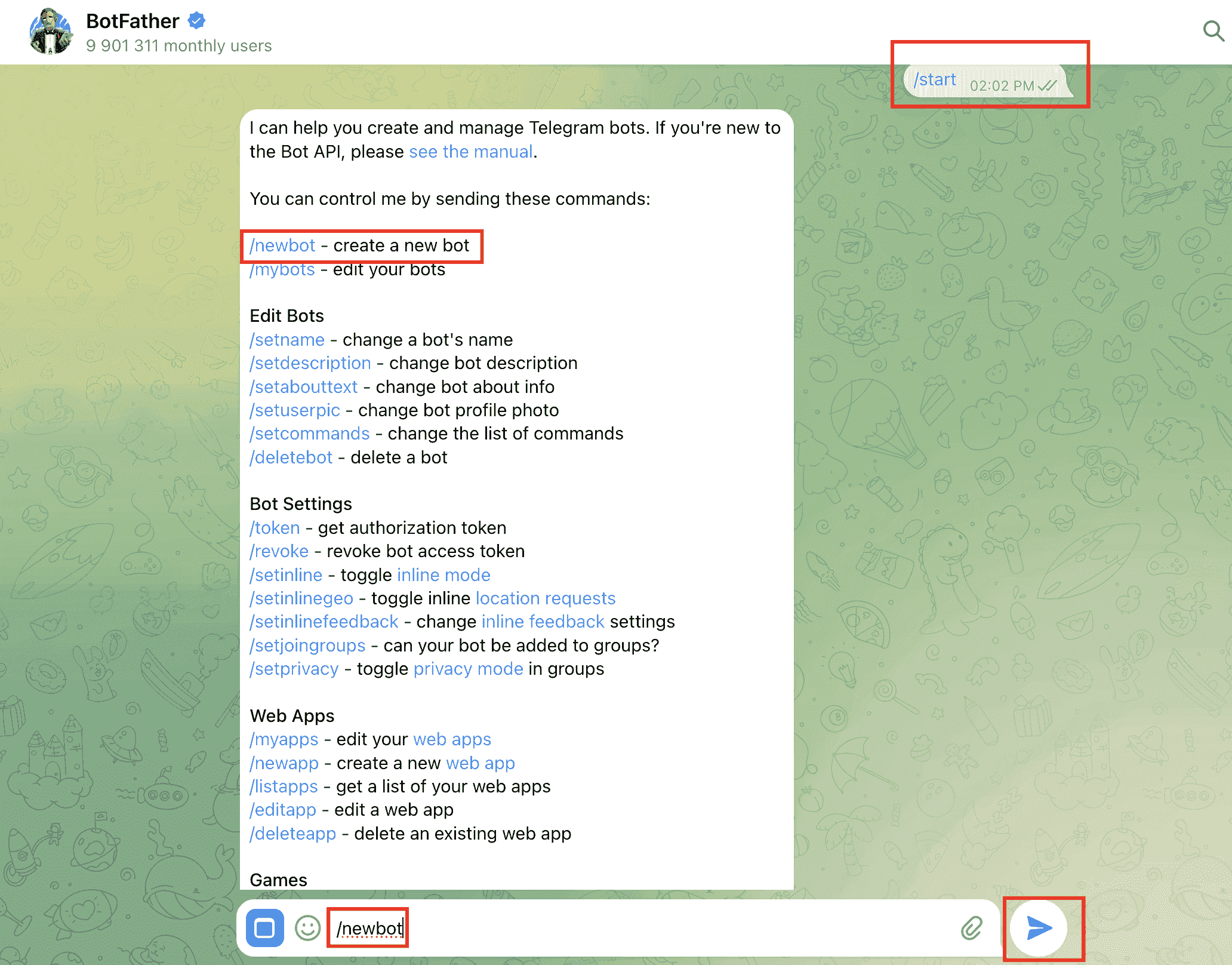
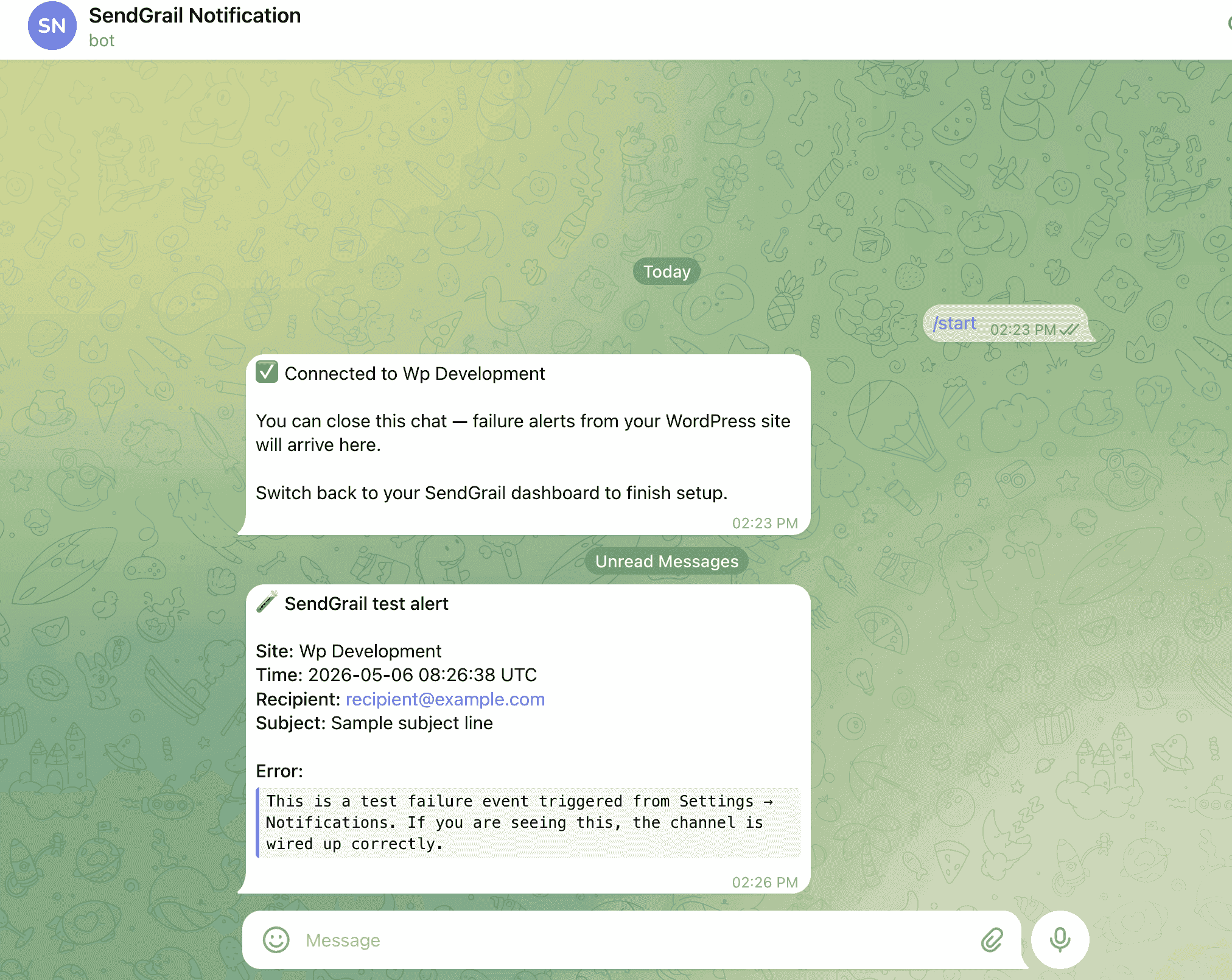
In the bot chat, tap Start (or send /start). The bot replies "Connected to {your site name} — failure alerts from your WordPress site will arrive here."
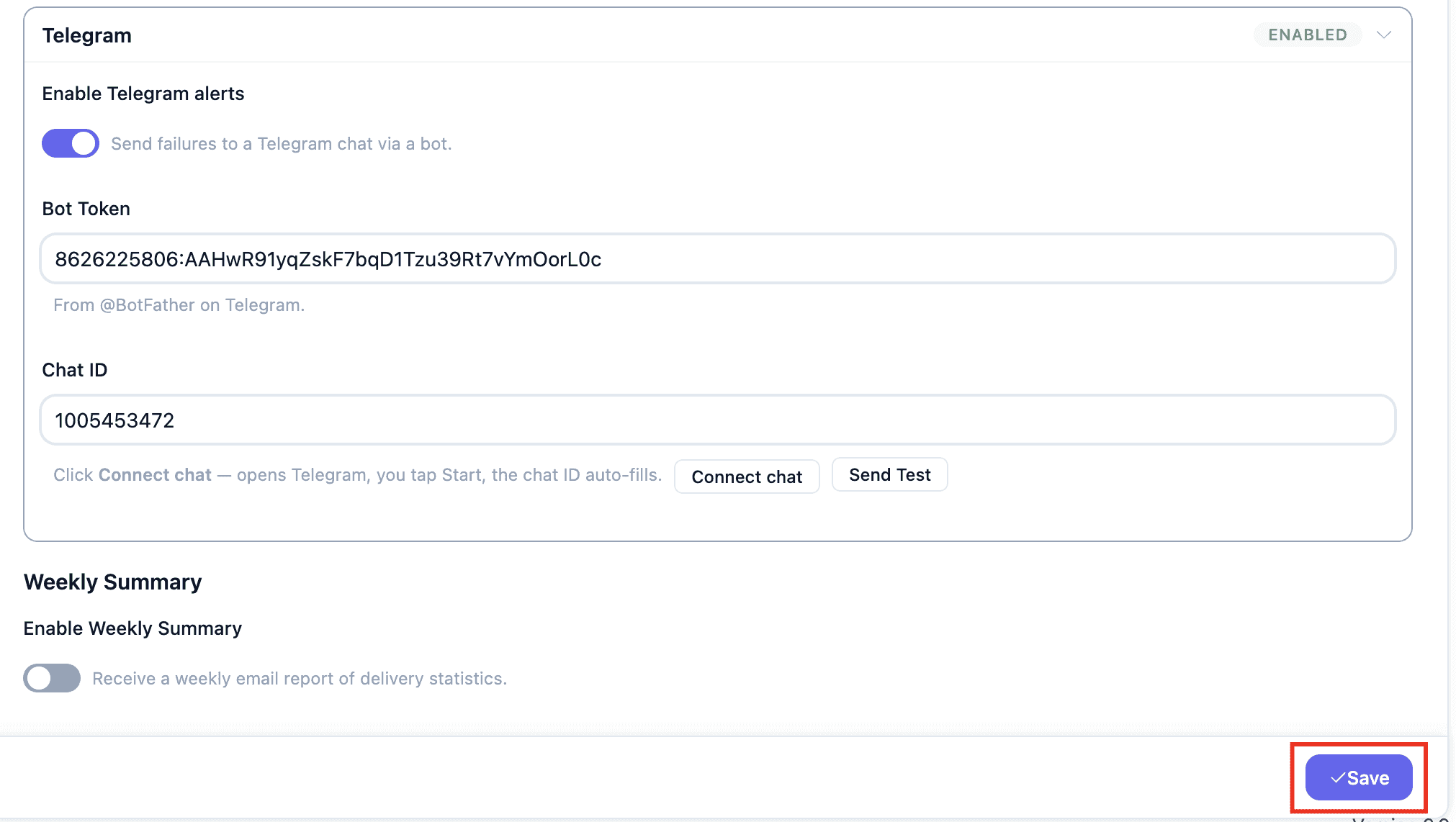
Switch back to SendGrail and Save
The Chat ID field auto-fills with the captured ID. Click Save to persist both the bot token and chat ID.
Send a test alert
Click Send Test beside the Chat ID field. Telegram should receive a SendGrail test alert message within a second or two.
Group chats
You can route alerts into a group chat instead of a 1:1 with the bot:
- Add your bot to the group (group → menu → Add Members → search the bot's username).
- Promote it to a member with Send Messages permission. Telegram blocks bot privacy mode by default; without messages permission the bot can't post.
- In the group, send
/start@your_bot_name(the@your_bot_namesuffix is required in groups). - Re-run Connect chat in SendGrail — the Chat ID will be captured as a negative number (e.g.
-1001234567890), which is correct for group chats.
Troubleshooting
chat not found
The bot was blocked or the chat was deleted. In Telegram, search for your bot, unblock it if needed, and run Connect chat again — that re-runs the auto-detect and rewrites the Chat ID.
Connect chat times out (Waiting → expires)
You didn't tap Start within the 5-minute polling window. Refresh the SendGrail Settings page and click Connect chat again — it restarts the poll.
Forbidden: bot was kicked from the group
Someone removed the bot from the group. Re-add it and re-run Connect chat to re-capture the chat ID.
Bot is in the group but doesn't send anything
Telegram's bot privacy mode is on by default. For most failure-alert use cases that's fine (the bot only sends; it doesn't need to read messages). But if your bot was added with restricted permissions, give it Send Messages permission via group → manage members → bot → permissions.
Test arrives, real failures don't
Confirm notify_on_failure is on (Settings → Notifications). Also check that the failed send actually surfaced as a failure in SendGrail — emails marked queued or retrying don't fire alerts; only terminal failures do.
What's next
- Discord — webhook-based alerts on Discord.
- Slack — webhook-based alerts on Slack.
- Failure Alerts overview — how email + chat alerts work together.