

Appearance
Gmail (App Password)

Gmail via SMTP
Send through your personal Gmail with a 2FA-generated App Password. No OAuth client setup required.
Want OAuth instead?
For better security and no 2FA dependency, use the Google Workspace / Gmail OAuth guide. OAuth setup takes longer but doesn't require an App Password and rotates tokens automatically. Works for both Workspace and personal @gmail.com accounts.
Quick Reference
SMTP Settings
- Host
- smtp.gmail.com
- Port
- 587
- Encryption
- TLS
- Username
- Your full Gmail address
- Password
- 16-character App Password
Prerequisites
- A Gmail account with 2-Step Verification enabled (required for App Passwords).
- WordPress admin access.
If you don't have 2-Step Verification on yet, turn it on at myaccount.google.com/security before starting — Google won't show the App Passwords option without it.
Step-by-step
Generate an App Password
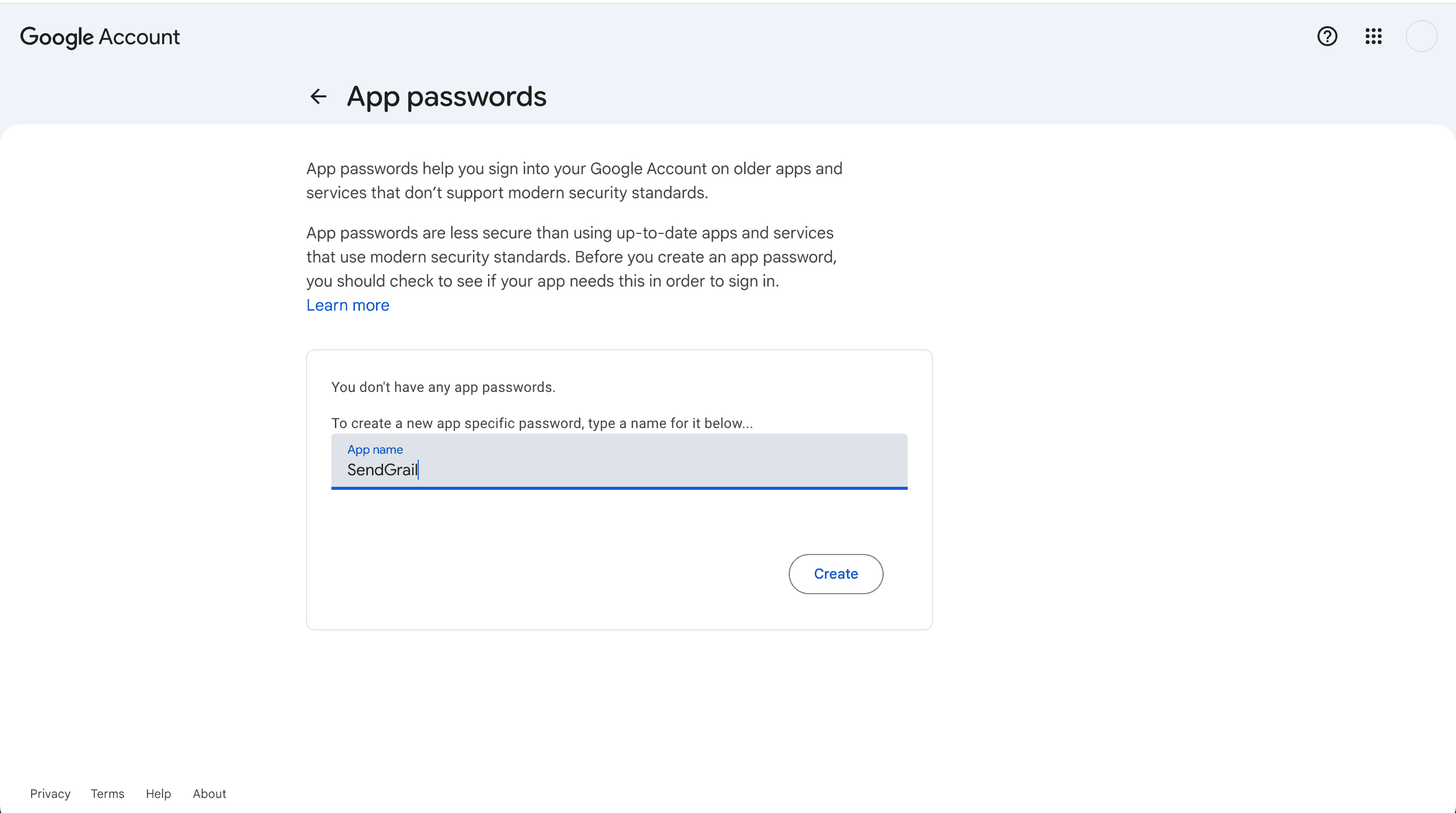
Open myaccount.google.com/apppasswords in a new tab while signed into the Gmail account you want to send from.
Type a name for this app — anything works, e.g. "SendGrail WordPress" — and click Create.
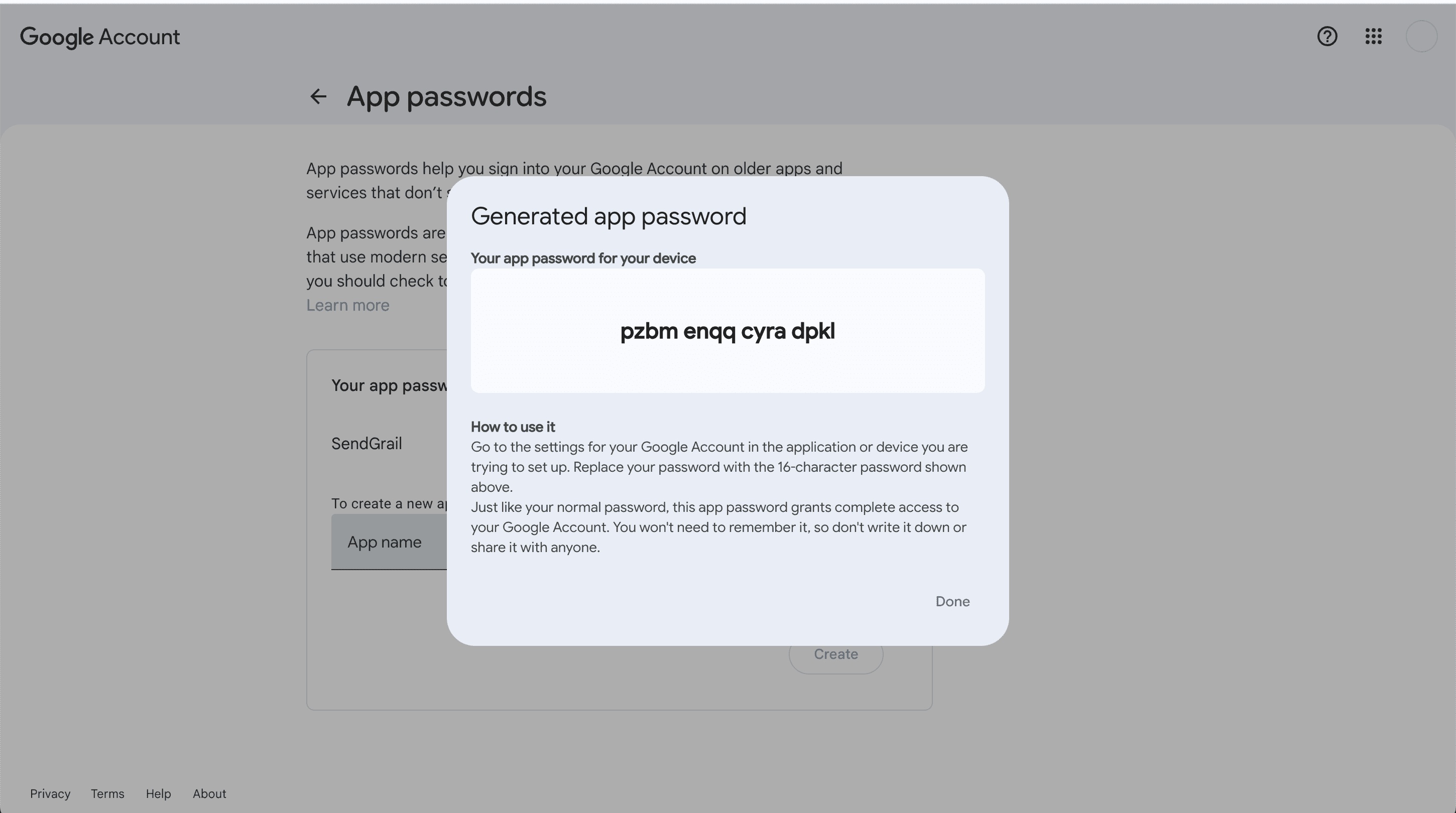
Google displays a 16-character password. Copy it now — you can't view it again after closing this dialog.
Add the connection in SendGrail
In WordPress admin → SendGrail → Connections → Add Connection.
Pick Gmail from the provider grid. SendGrail pre-fills the host, port, and encryption — you only need credentials and a sender identity.
Fill in the connection form
| Field | Value |
|---|---|
| Connection Name | Gmail (or any descriptive label like "Marketing Gmail") |
| From Email | The same Gmail address you generated the App Password for |
| From Name | Display name shown to recipients (e.g. your name or site name) |
| Username | The same Gmail address |
| Password | The 16-character App Password from step 1 (no spaces) |
Why "App Password" not regular password?
Google blocks SMTP authentication using regular passwords for any account with 2FA enabled. App Passwords are 16-character tokens scoped to one app and revocable independently — much safer than your account password.
Click Save.
Test it
In SendGrail → Test Email, send yourself a test message. The Connection field should show your new Gmail entry; pick it.
If the test arrives in your inbox, you're done. If not, see Troubleshooting below.
Activate as default (optional)
To route ALL WordPress emails through this connection, go to SendGrail → Settings → General → Default Connection and select your Gmail entry. Save.
Or use Email Routing to send only specific emails through Gmail (e.g. transactional only) while marketing goes elsewhere.
Troubleshooting
535 Username and Password not accepted
The most common error. One of:
- Wrong password. App Passwords don't have spaces — Google shows them grouped (
abcd efgh ijkl mnop) but you should paste them as one string. Some users copy with the spaces; remove them. - 2FA not actually enabled. Verify at myaccount.google.com/security. The App Passwords page will say "your account doesn't allow App passwords" if 2FA is off.
- Wrong account. App Passwords are scoped to the Google account that generated them. Make sure the Gmail address in the Username field matches the account you logged into for the App Passwords page.
Could not authenticate. Please check your username/password
Same root cause as above — re-generate a fresh App Password and re-save.
Emails go through but land in Spam
Gmail-as-sender on a non-Gmail domain often gets flagged. For domains you control (e.g. you@yourcompany.com), use a dedicated provider like SendGrid or Postmark with proper SPF/DKIM signing instead of Gmail SMTP.
Hitting Gmail's send limit
Gmail caps personal accounts at 500 messages per 24 hours. If your site sends more than that, you'll get 421 Service not available, daily message limit exceeded errors. Switch to Google Workspace (2,000/day) or a dedicated provider.
What's next
- Test Email — verify the connection without leaving the plugin.
- Email Logging — see every email Gmail processes.
- Failure Alerts — get pinged in Slack/Telegram if Gmail starts rejecting.