

Appearance
Outlook / Microsoft 365 (OAuth)

Outlook / Microsoft 365 via OAuth 2.0
Send through any Microsoft mailbox — personal Outlook.com / Hotmail / Live or business Microsoft 365 / Office 365. OAuth-only; SMTP Basic Auth is not supported.
Why OAuth-only?
Microsoft is phasing out SMTP Basic Auth for Microsoft 365, and tenant admins are increasingly disabling it by default. SendGrail uses Microsoft Graph API via OAuth — this is the only future-proof approach. SMTP isn't available even as an option for this provider.
Pick your account type
The Azure setup differs slightly depending on which kind of Microsoft account you're sending from:
| Account type | Pick this |
|---|---|
@outlook.com, @hotmail.com, @live.com, @msn.com | Personal account flow (multi-tenant) |
Custom domain on Microsoft 365 / Office 365 (e.g. you@yourcompany.com) | Business account flow (single or multi-tenant) |
Both flows use the same SendGrail connection setup at the end — only the Supported account types choice in Azure differs.
Prerequisites
- A Microsoft account with mailbox access (personal Outlook, or Microsoft 365 mailbox).
- Access to Azure portal — any Microsoft account works for app registrations (no paid Azure subscription required).
- For Microsoft 365 business accounts, you may need tenant admin rights to grant Mail.Send permission, depending on your tenant policy.
- WordPress admin access.
Step-by-step
Open App registrations
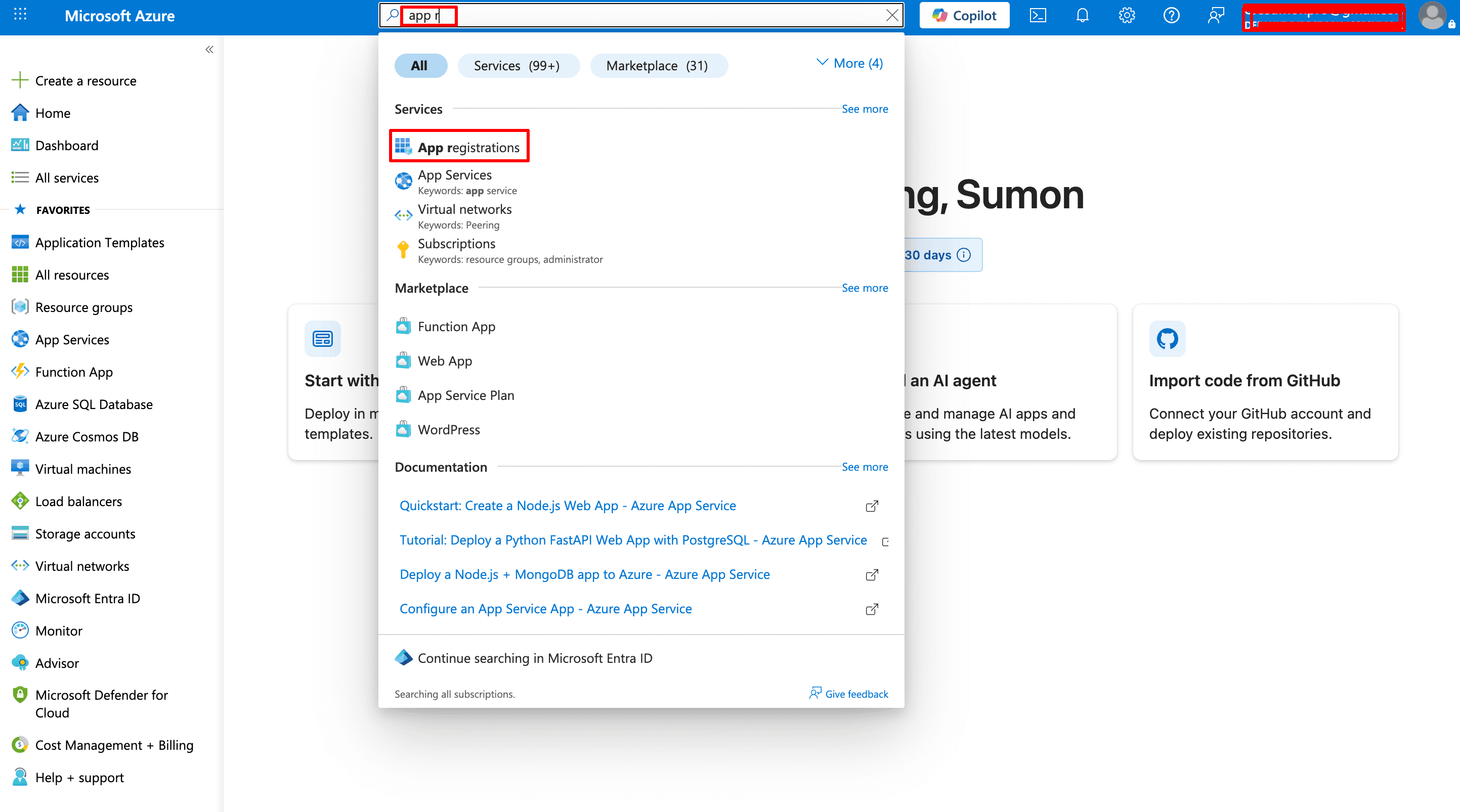
Sign into portal.azure.com. In the top search bar type app registrations and click the App registrations result under Services.
Start a new registration
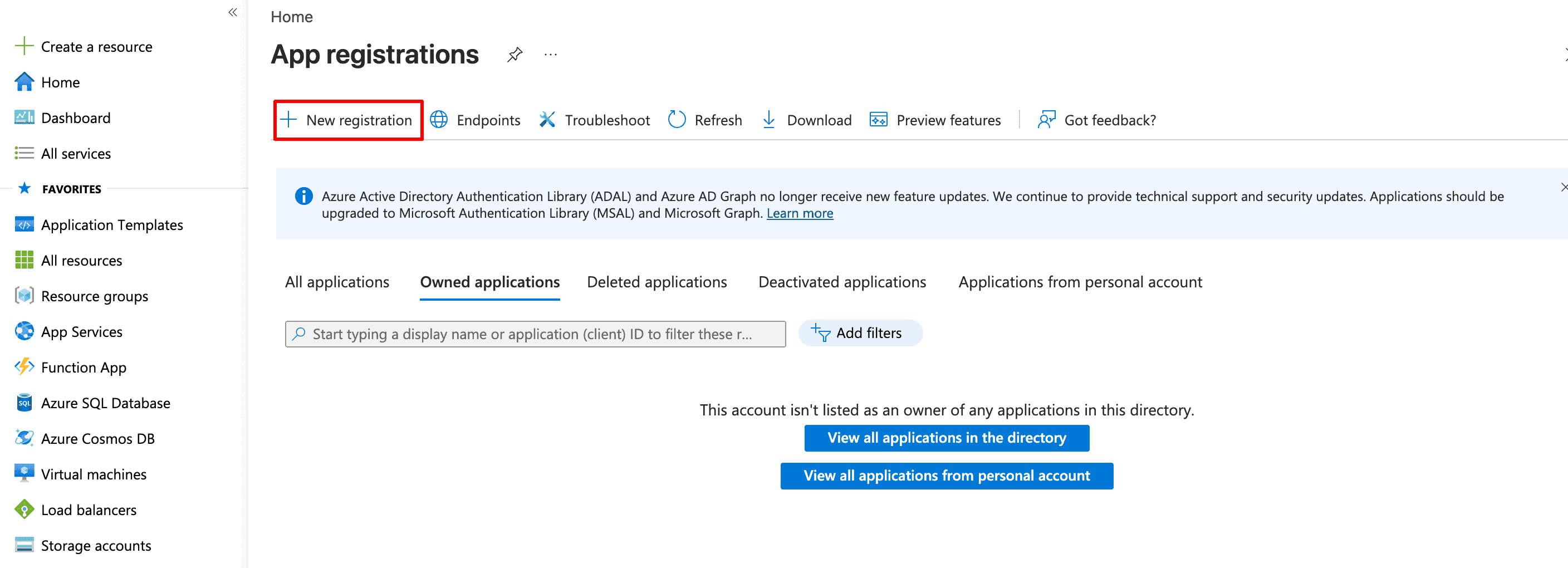
On the App registrations page, click + New registration in the top toolbar.
Fill in the registration form
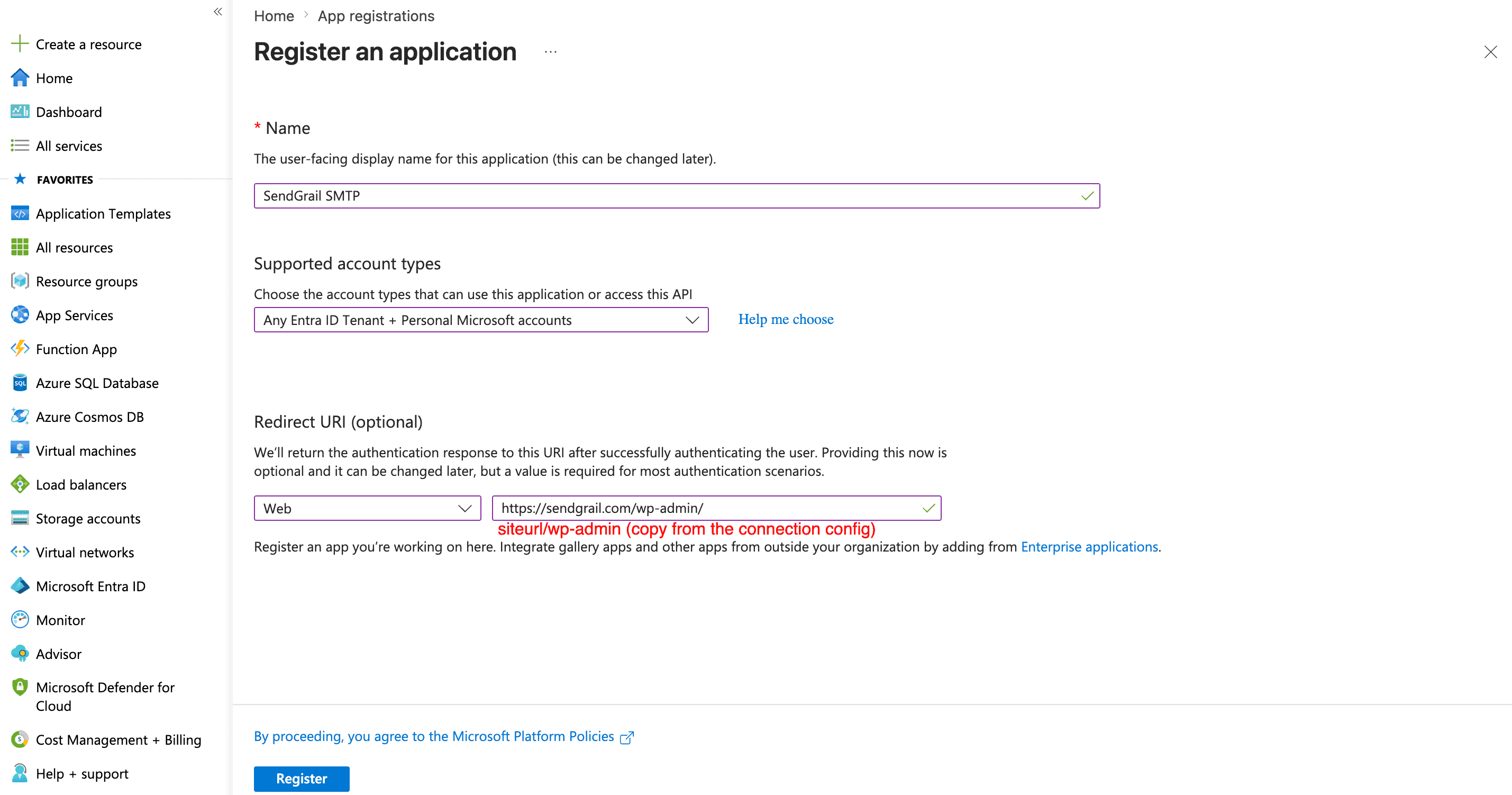
Fill in:
- Name:
SendGrail SMTP(or anything descriptive). - Supported account types — pick based on your account type:
- Personal Outlook.com / Hotmail: Accounts in any organizational directory and personal Microsoft accounts.
- Microsoft 365 business: Accounts in this organizational directory only (single tenant), or the multi-tenant option if you'll authorize multiple tenants.
- Redirect URI — select Web as the platform and paste the redirect URI shown in your SendGrail connection form (something like
https://yoursite.com/wp-admin/...).
Click Register.
Copy the Application (client) ID
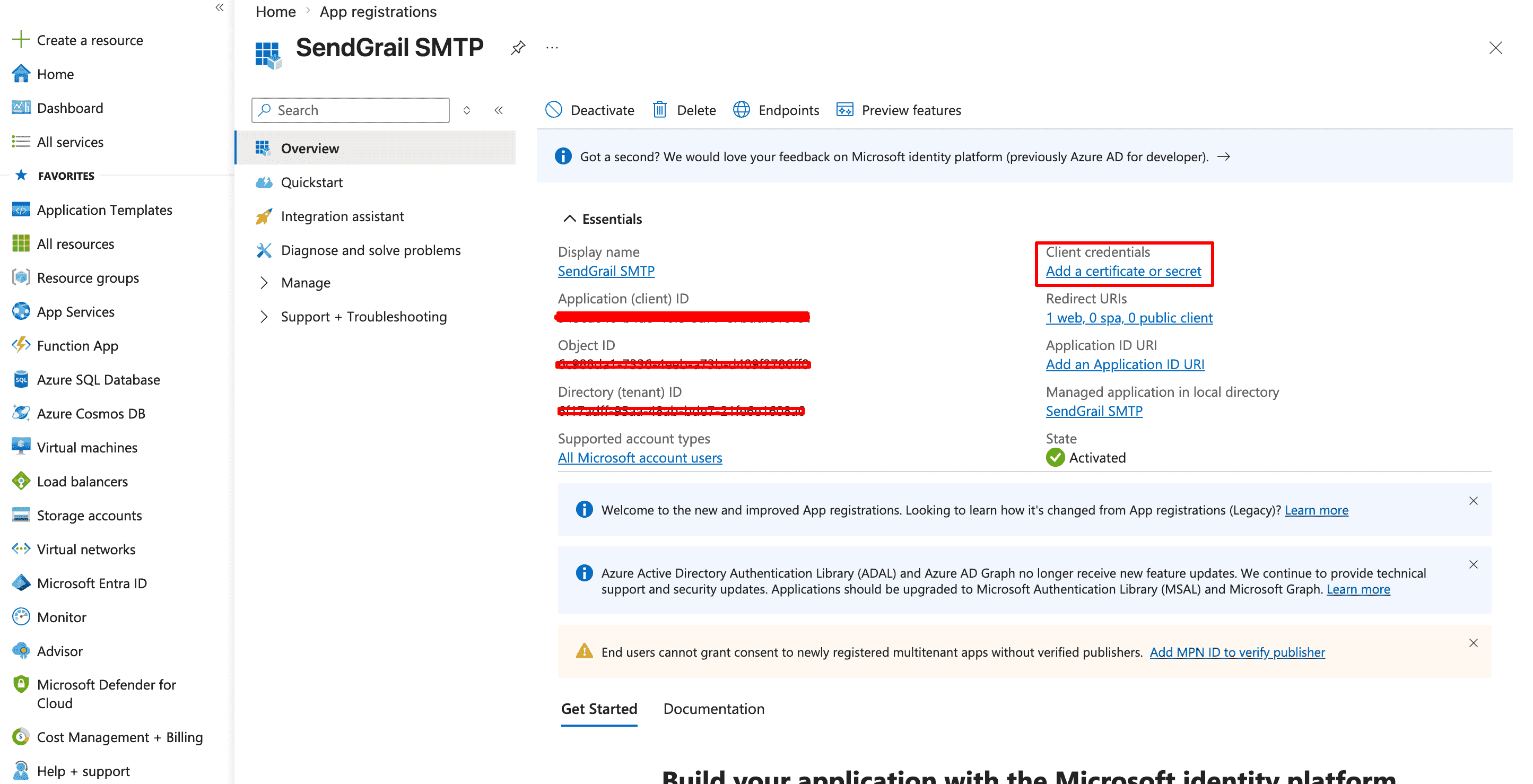
The new app's Overview page opens. Copy the Application (client) ID — you'll paste this into SendGrail later.
The right-hand panel also shows Client credentials → Add a certificate or secret. Click that link to continue.
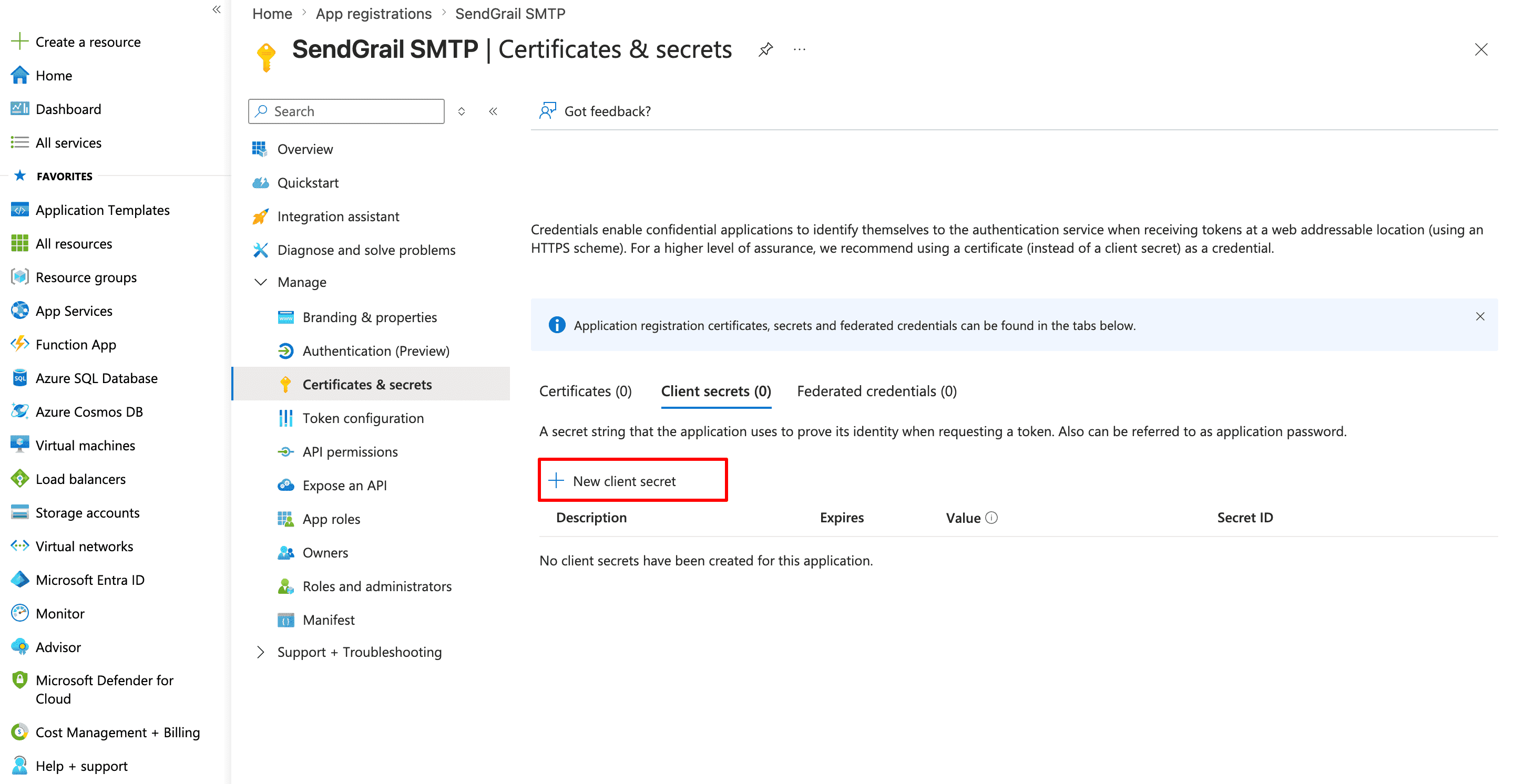
Start a new client secret
You're now on Certificates & secrets. Stay on the Client secrets tab and click + New client secret.
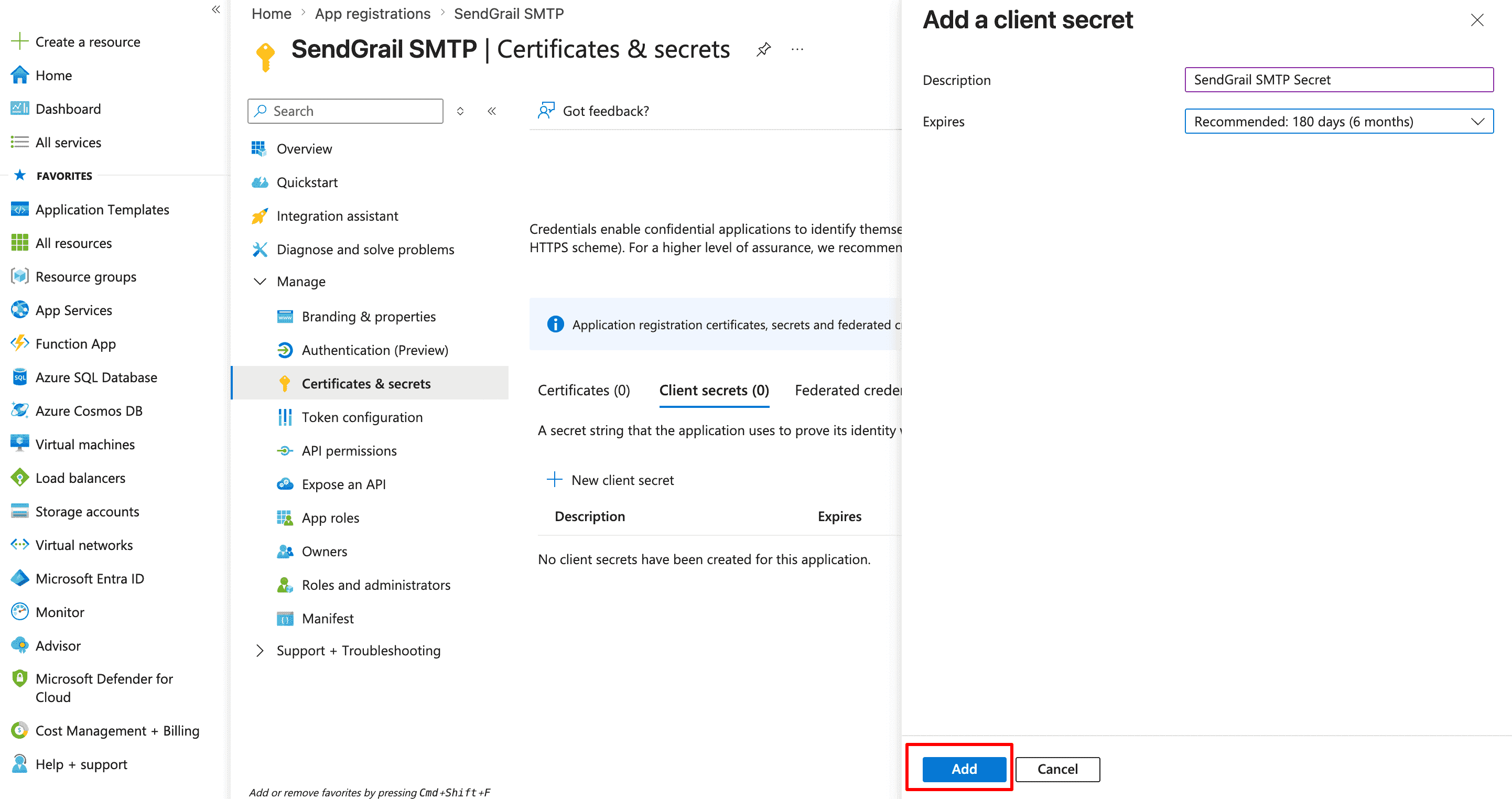
Configure the secret and Add
In the side panel:
- Description:
SendGrail SMTP Secret(or any label). - Expires: pick a duration. 24 months is a good default; longer if you don't want to manage rotation.
Click Add.
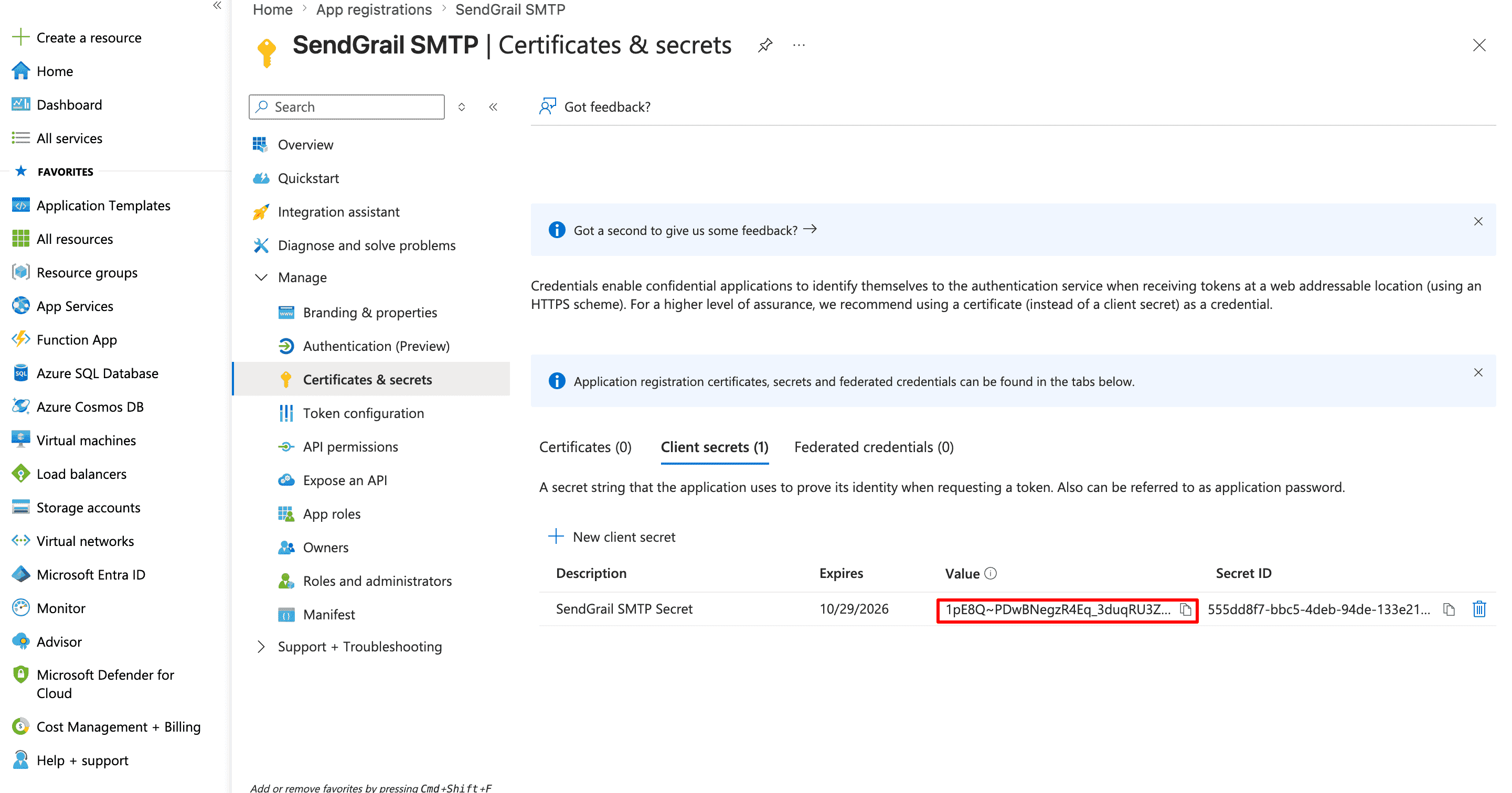
Copy the secret Value immediately
Azure now lists the secret with its Value visible only on this page. Copy the Value (not the Secret ID) — once you navigate away, Azure replaces it with •••••• and you'd have to generate a new secret.
Add the connection in SendGrail
WordPress admin → SendGrail → Connections → Add Connection → pick Outlook / Microsoft 365.
Fill in:
- Connection Name:
Outlook(orMicrosoft 365). - From Email: the mailbox you want to send from.
- From Name: display name.
- OAuth Client ID: Application (client) ID from step 4.
- OAuth Client Secret: the secret Value from step 7.
Click Save.
Authenticate
Click the Authenticate button on the saved connection. A Microsoft sign-in tab opens. Sign in with the mailbox account, then approve the requested permissions (Send mail, Read your profile, Maintain access).
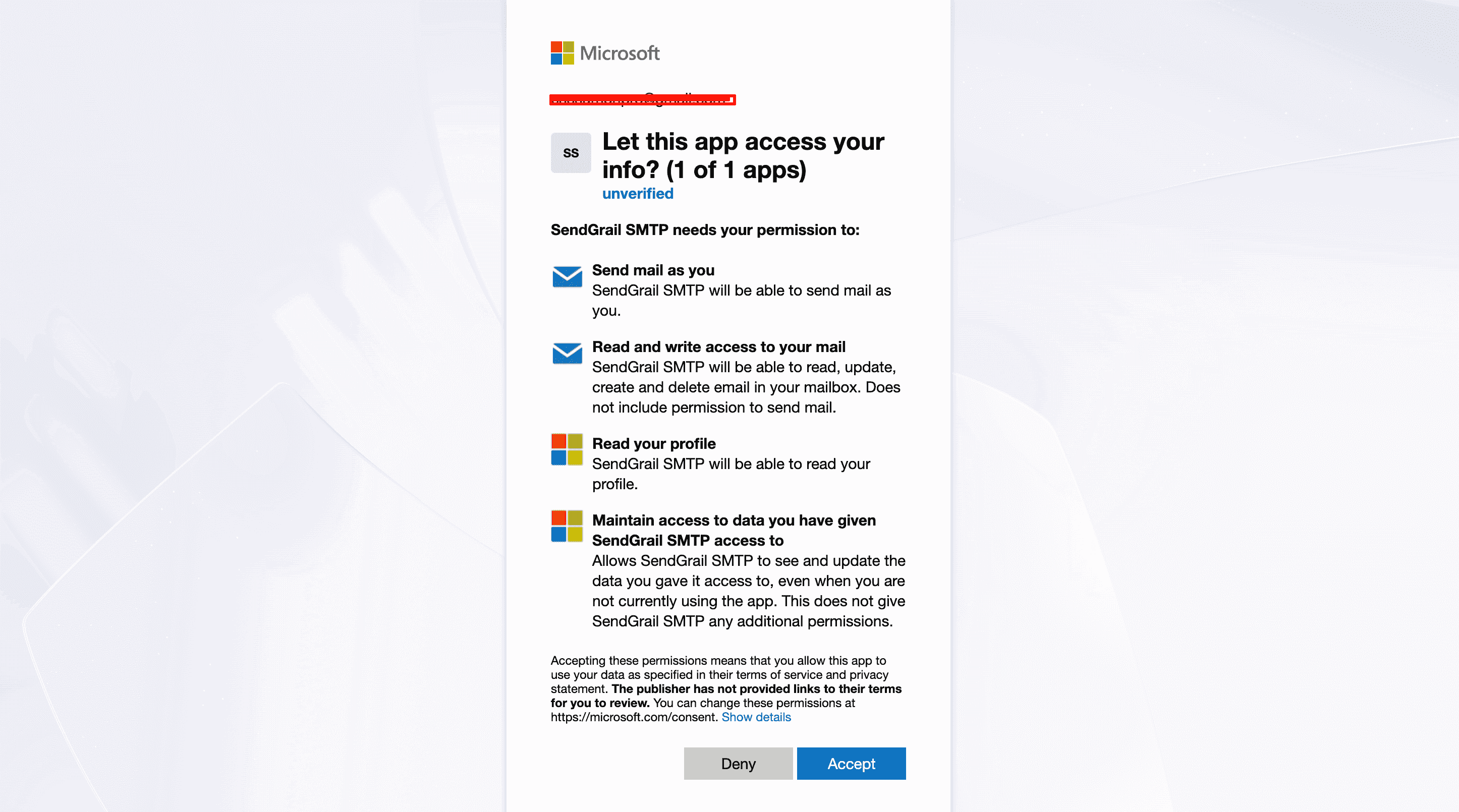
Click Accept. Microsoft redirects back to SendGrail and the connection flips to Connected.
Microsoft 365 business: admin consent
On business tenants that restrict user consent, the user can't accept the permissions on their own. In that case go to Azure → your app → API permissions → + Add a permission → Microsoft Graph → Delegated permissions → Mail.Send, then click Grant admin consent for [your-org]. Personal Outlook accounts don't need this.
Test it
SendGrail → Test Email → select the new connection → send. The email lands in your inbox within seconds.
Troubleshooting
AADSTS50020: User account is from an external identity provider
Personal Outlook accounts trying to authenticate against an app registered as single-tenant. Edit the registration → Authentication → Supported account types → switch to Accounts in any organizational directory and personal Microsoft accounts.
AADSTS50011: redirect_uri does not match
The redirect URI in your Azure app registration doesn't match SendGrail's. Open your connection in SendGrail → copy the exact redirect URI from the OAuth callout → paste it into Azure → Authentication → Redirect URIs. Watch for trailing slash mismatches.
AADSTS65001: User has not consented
The Mail.Send permission requires admin consent in some Microsoft 365 tenant configurations. In Azure → API permissions → click Grant admin consent for [your-org].
SmtpClientAuthentication is disabled for the tenant
Microsoft has disabled SMTP AUTH at the tenant level. This is the new default for new tenants and increasingly for existing ones. The OAuth flow described here is unaffected — it goes through Microsoft Graph API, not SMTP. So this error shouldn't apply to SendGrail's Outlook connection.
Sign-in succeeds but tokens fail to refresh
Personal Outlook accounts occasionally invalidate refresh tokens after long inactivity or password changes. Re-authorize via the Re-authenticate button in SendGrail.
Forbidden: TenantThrottling or daily-limit hit
Personal Outlook caps outbound mail at 300/day. Microsoft 365 limits depend on your subscription (typically 10k/day per mailbox on Business plans). For higher volume, use a dedicated provider like SendGrid or Amazon SES.
Mail sends but recipient sees "via outlook.com"
Microsoft Graph's standard envelope adds a via notice when the message wasn't sent through the user's normal mail client. Most modern inbox clients hide this; only Gmail's "Show original" reveals it. For a fully-branded sender, use a verified custom domain in Microsoft 365 + DKIM signing.
What's next
- Test & Simulate — verify the connection works.
- Email Routing — route specific email types through Outlook (e.g. internal team notifications) while customer-facing emails go through a dedicated provider.
- Failure Alerts — get notified in Slack/Telegram if Microsoft tokens stop working.